Quick Start Guide
Install Agentic Gameplay Camera, add one component to your pawn, and drive camera states from your own gameplay in Unreal Engine 5.8
Agentic Gameplay Camera — Quick Start Guide
From a fresh Unreal Engine 5.8 project to a working third-person camera: enable the plugin, add one component, push one state. Roughly fifteen minutes.
Requirements: Unreal Engine 5.8 and the engine plugins GameplayCameras, EnhancedInput, DrawDebugLibrary and LevelSequenceEditor. Source installs also need a matching Unreal C++ toolchain. Two plugins are optional: the sibling Agentic Targeting (adds lock-on targets for Focus and Awareness — the camera runs standalone without it) and Epic's Experimental ToolsetRegistry (without it the editor toolsets are unavailable and everything else works).
Step 1: Install the Plugin
From Fab: install Agentic Gameplay Camera for Unreal Engine 5.8. An engine-wide installation lives in Engine/Plugins/Marketplace/AgenticGameplayCamera/; a project-local installation lives in YourProject/Plugins/AgenticGameplayCamera/.
From source: copy the plugin into YourProject/Plugins/AgenticGameplayCamera/, regenerate project files, and compile your project's editor target.
Agentic Targeting is optional. Skip it and the camera works — you only lose the lock-on target source the Focus and Awareness modifiers read. If you want those, install it the same way; the camera detects it and integrates automatically, no extra wiring.
In Edit → Plugins, search "Agentic" and enable Agentic Gameplay Camera. Restart the editor when prompted. The plugin declares its engine dependencies, so GameplayCameras, EnhancedInput, DrawDebugLibrary and LevelSequenceEditor enable with it.
Step 2: Check What Installed Itself
Two things are wired for you and are worth confirming rather than redoing:
Gameplay tags. The plugin registers its own tag list at module startup, the same way a Game Feature plugin does. You do not add anything to your project's DefaultGameplayTags.ini. Open any FGameplayTag picker and type Agentic.Camera — the modes, states, modifiers and params should all be there.
DataTables. The plugin's own config layers onto your project's Game branch, so these are already assigned under Project Settings → Game → Agentic Camera:
Default Camera Mode DataTable  →  /AgenticGameplayCamera/Game/DT_GameCameraModes
Modifier DataTables            →  /AgenticGameplayCamera/Game/DT_GameCameraModifiers
If either is empty — a project that sets these keys in its own DefaultGame.ini wins over the plugin's defaults — click Configure Shipped Defaults in that settings panel, then Validate All Tables. Both actions are also on the Tools menu as Configure Shipped Camera Defaults and Validate All Camera Tables. Results appear as a toast and in the Agentic Camera Message Log.
To browse the shipped assets, enable Show Plugin Content in the Content Browser's settings. Everything lives under the /AgenticGameplayCamera/ mount.
Step 3: Add the Camera to Your Pawn
Add the Agentic Camera component (UAgenticCameraComponent) to your pawn. That is the whole integration.
Blueprint: open your pawn Blueprint → Add Component → search "Agentic Camera".
C++:
#include "Components/AgenticCameraComponent.h"

// In your pawn's constructor
CameraComp = CreateDefaultSubobject<UAgenticCameraComponent>(TEXT("AgenticCamera"));
At registration — spawn time, before possession — the component guarantees the two Epic pieces the camera runs on:
- If the pawn has no
UGameplayCameraComponent, one is created and attached to the root. - If that camera runs no camera asset, a transient default whose director is an Agentic Camera Director is built at runtime. There is no asset to author and nothing to keep in sync.
- On a gameplay camera this component created, the possessing player's view target switches to the pawn automatically. A gameplay camera the pawn already owned stays the game's to activate — Epic's Game Animation Sample characters activate their own.
Press Play. You should be looking through a third-person rig running the Agentic.Camera.Exploration mode.
The starting mode comes from the component's Default Camera Mode Tag, and an empty value leaves the mode alone.
Step 4: Push States from Your Gameplay
A state is a tag, and only your code decides when it is on. The plugin never derives "sprinting" or "falling" from movement — that guess would be wrong for someone's game. The one exception is documented in Step 6.
Wire a bool wherever your gameplay already knows the answer. Repeating a value is a no-op: the call checks the tag against the active set and returns, with no revision bump, no OnStatesChanged broadcast and no container copy — so a per-tick call is safe. It is not zero, though: it still costs the call and that tag lookup. Prefer calling it on your own state transitions, and keep the per-tick form for a bool you cannot get an edge from.
const FGameplayTag Sprinting = FGameplayTag::RequestGameplayTag("Agentic.Camera.State.Sprinting");
const FGameplayTag Crouching = FGameplayTag::RequestGameplayTag("Agentic.Camera.State.Crouching");
const FGameplayTag Aiming    = FGameplayTag::RequestGameplayTag("Agentic.Camera.State.Aiming");

CameraComp->SetStateActive(Sprinting, bWantsToSprint);

// Or on enter / exit
CameraComp->AddState(Crouching);
CameraComp->RemoveState(Crouching);

// Replace the whole set in one call (one revision, one OnStatesChanged)
CameraComp->SetStates(FGameplayTagContainer(Aiming));

// Query, clear, listen
bool bAiming = CameraComp->HasState(Aiming);
CameraComp->ClearStates();
CameraComp->OnStatesChanged.AddDynamic(this, &AMyCharacter::HandleCameraStates);
Blueprint: the same nodes. Set State Active with a bool pin is the one you will use most.
Several states can be active at once — Crouching + Aiming is normal — and their configs blend with equal weight.
Pull instead of push. Implement IAgenticCameraProvider::GetCameraStates on the pawn and return the tags from your own locomotion code. The director asks the actor before its components, so that path wins and the component's own container is ignored. When the provider is the UAgenticCameraComponent, the director takes a native fast path (a revision counter plus a const-reference accessor) that skips the per-frame Blueprint dispatch and container copy.
Step 5: Switch Modes
A mode decides which rig gets built. Switch with a tag:
UAgenticCameraComponent* CameraComp = Character->FindComponentByClass<UAgenticCameraComponent>();
if (CameraComp)
{
    CameraComp->SetCameraMode(FGameplayTag::RequestGameplayTag("Agentic.Camera.Combat.Melee"));
}
Blueprint: Get Agentic Camera Component → Set Camera Mode.
Mode changes blend through Epic's BlendStack over the incoming mode's blend-in time — Transition.BlendInTime on the mode Data Asset, which is the ModeBlendInTime key in the JSON row. Only the five authored mode tags have a mode behind them; the full list and the transition settings are in the Gameplay Camera reference.
Step 6: Connect Lock-On (Optional)
Focus and Awareness need targets, and targets come from the optional Agentic Targeting plugin. Skip this step entirely and everything above still works. If you install and enable it, add a UAgenticTargetingComponent to the same pawn and have the pawn implement IAgenticTargetProvider, delegating to that component.
With Agentic Targeting present, the camera sets exactly one state on its own: while the targeting component holds a target, the component's LockOnStateTag is active. It is an authored tag like any other — clear the property to opt out and push lock-on yourself.
- Focus rotates the view to keep the target framed.
Softlets the player look away and drifts back;HardLockdisables look input outright. - Awareness never touches rotation. It extends the arm, widens FOV and slides framing laterally so flankers stay in frame.
See the Modifiers reference for their parameters.
Step 7: Author a Mode
Camera modes are Data Assets, and the same data lives in a DataTable and a JSON file so a designer and an agent can both edit it. Open a shipped mode to see the shape:
/AgenticGameplayCamera/Game/Modes/DA_GameCameraMode_Exploration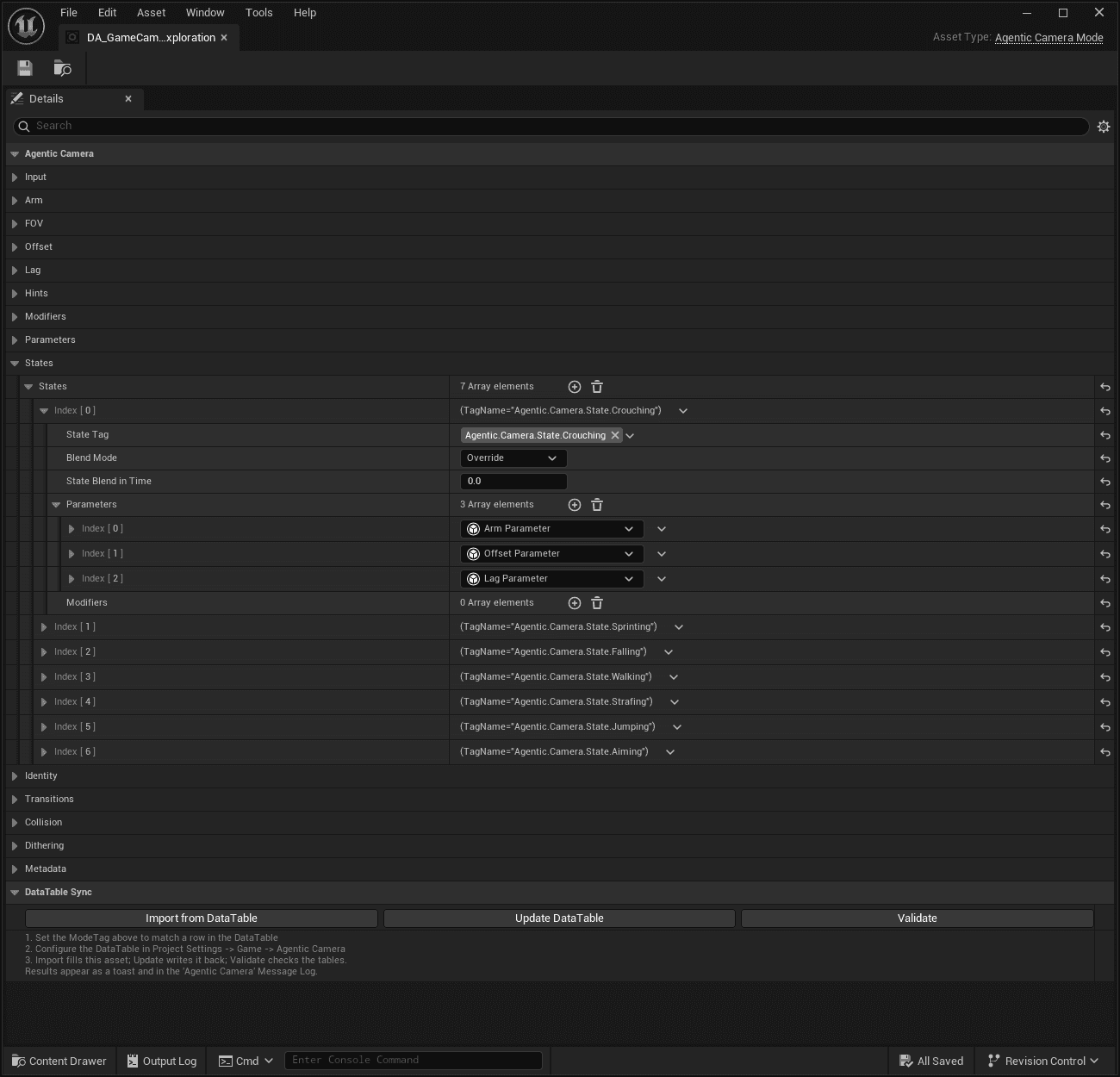
DA_GameCameraMode_Exploration in the Unreal Details panel. Input, Arm, FOV, Offset, Lag, Hints, Modifiers and Parameters are the mode's base rig; the expanded States array holds seven per-state overrides — here Crouching in Override blend mode with Arm, Offset and Lag parameters. DataTable Sync at the bottom is the round-trip: Import from DataTable, Update DataTable, Validate.
The workflow either direction:
- Designer: edit the Data Asset in the Details panel, then click Update DataTable to write the row back.
- Agent or text editor: edit
DT_GameCameraModes.json, reimport the DataTable in the editor, then click Import from DataTable on the Data Asset. - Either way, finish with Validate (or Validate All Camera Tables) to cross-check the tag / registry-row / class-path contract. That action also regenerates
AgenticCameraSchema.json, which is the authoritative list of parameter key names.
Duplicate the shipped modes into your own project content before you change them, so a plugin update cannot overwrite your work.
Step 8: Turn on the Debug Draw
One console variable shows the whole rig:
Agentic.Camera.DebugLevel 1    // shapes: rig, focus, awareness, constraints, follow, lag, subjects
Agentic.Camera.DebugLevel 2    // shapes plus text labels and numbers
Agentic.Camera.DebugLevel 0    // off
It also switches on from Project Settings → Game → Agentic Camera → Show Debug Info, so you do not have to know the variable's name to find the feature. Individual bDebugDraw flags on a mode's Lag config or on a modifier force that one site on at full detail regardless of the global level.
Blue is the director's arm and pivot (cyan at the camera socket), magenta is focus and lock-on, purple is awareness threats, orange is constraints, green is yaw follow while it recentres, olive is pitch follow, teal is lag, white is the director's state readout. Every draw is also recorded to the Visual Logger under the AgenticCamera category, so a session can be scrubbed after the fact.
For log detail, the category is LogAgenticCamera:
log LogAgenticCamera VerboseNext Steps
- Gameplay Camera — Every mode, state and project setting; transitions and the authoring pipeline
- Modifiers — Parameters for all ten behavior modifiers and five parameter modifiers, plus the blend curves
- Cinematic Shot Flows — Authored coverage (Experimental)
- Troubleshooting — Read this first when a mode, state or modifier appears to do nothing