Quick Start Guide
Get Agentic Targeting working in your UE5 project in 5 minutes
Agentic Targeting - Quick Start Guide
A step-by-step guide to integrating the Agentic Targeting system into your Unreal Engine project.
Requirements: Unreal Engine 5.5+ (wraps Epic's Gameplay Targeting System plugin)
Step 1: Install the Plugin
Copy the AgenticTargeting folder to your project's Plugins/ directory:
YourProject/
  Plugins/
    AgenticTargeting/    <-- Copy here
Step 2: Enable Required Plugins
- Open your project in Unreal Editor
- Go to Edit → Plugins
2a. Enable Gameplay Abilities (GAS)
Search for "Gameplay Abilities" and enable it:
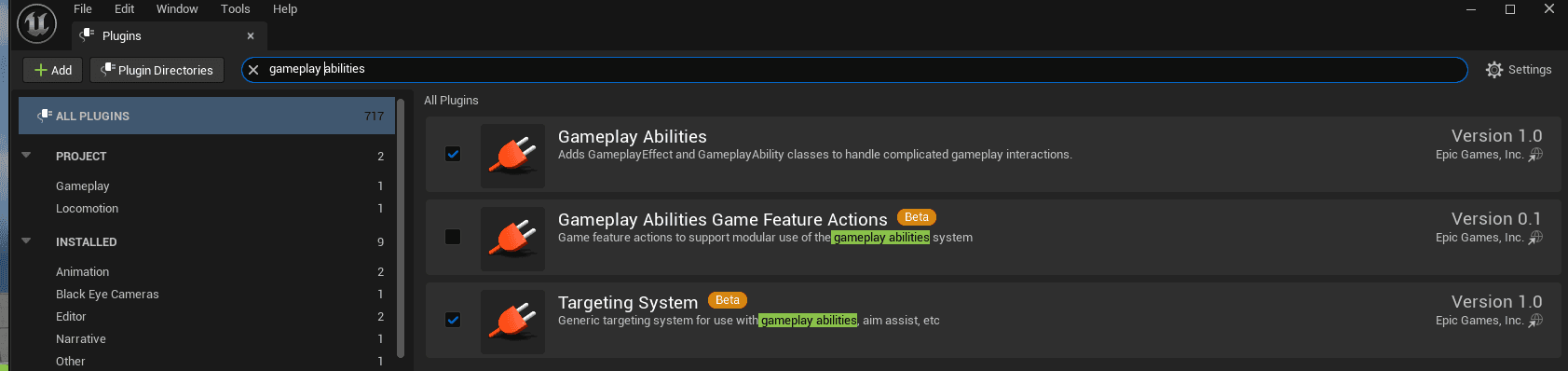
2b. Enable Agentic Targeting
Search for "Agentic Targeting" and enable it:
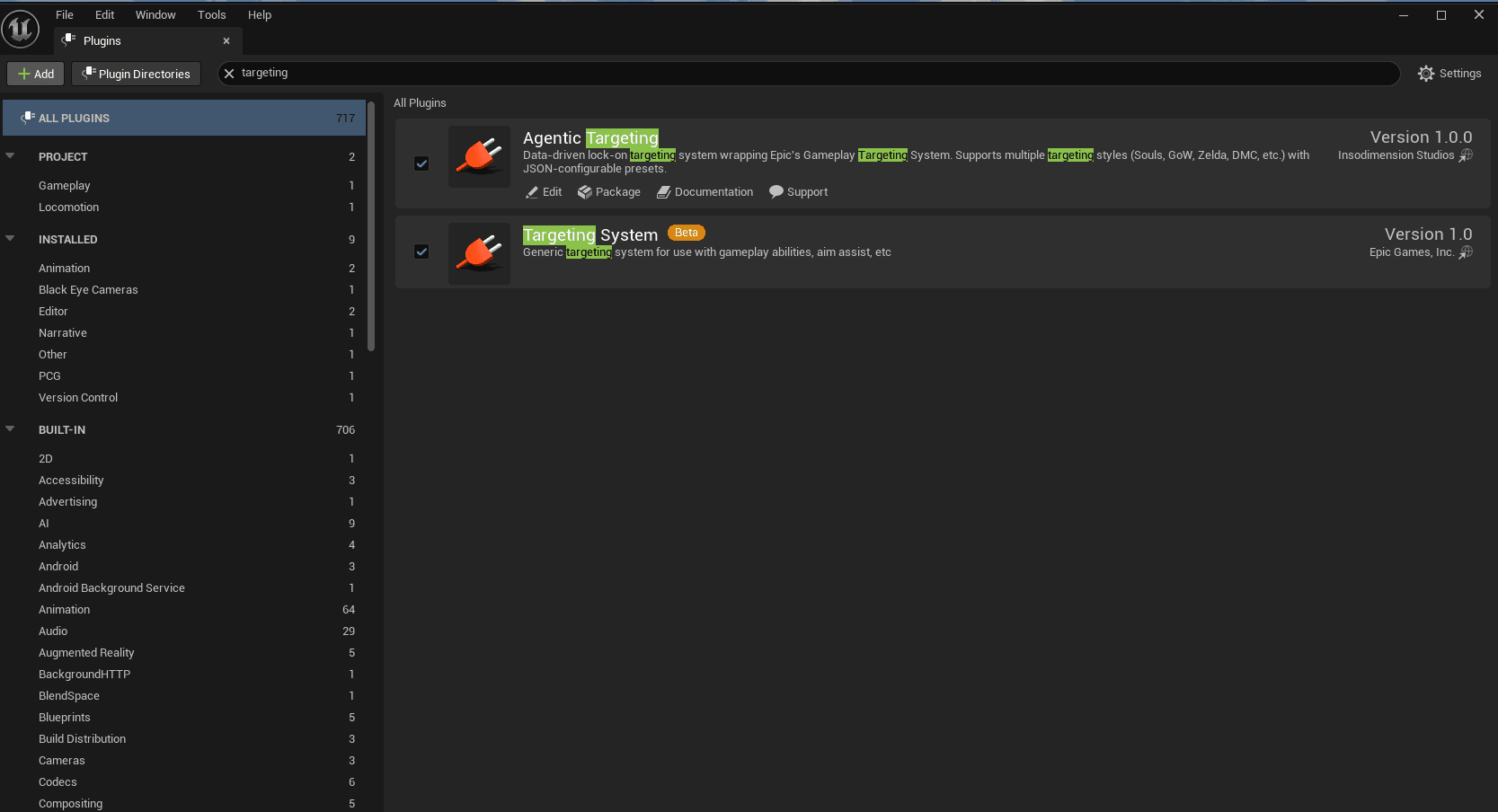
- Restart the editor when prompted
Epic's "Gameplay Targeting System" plugin is also required - it's auto-enabled as a dependency of Agentic Targeting.
Step 3: Configure GameplayTags
The targeting system uses GameplayTags for styles and presets. You need to register the plugin's tag table.
- Go to Edit → Project Settings
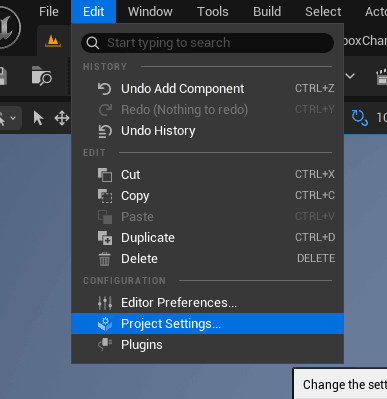
- Navigate to Project → GameplayTags
- Under Gameplay Tag Table List, click the + button
- Select
/AgenticTargeting/Data/Targeting/DT_TargetingTags
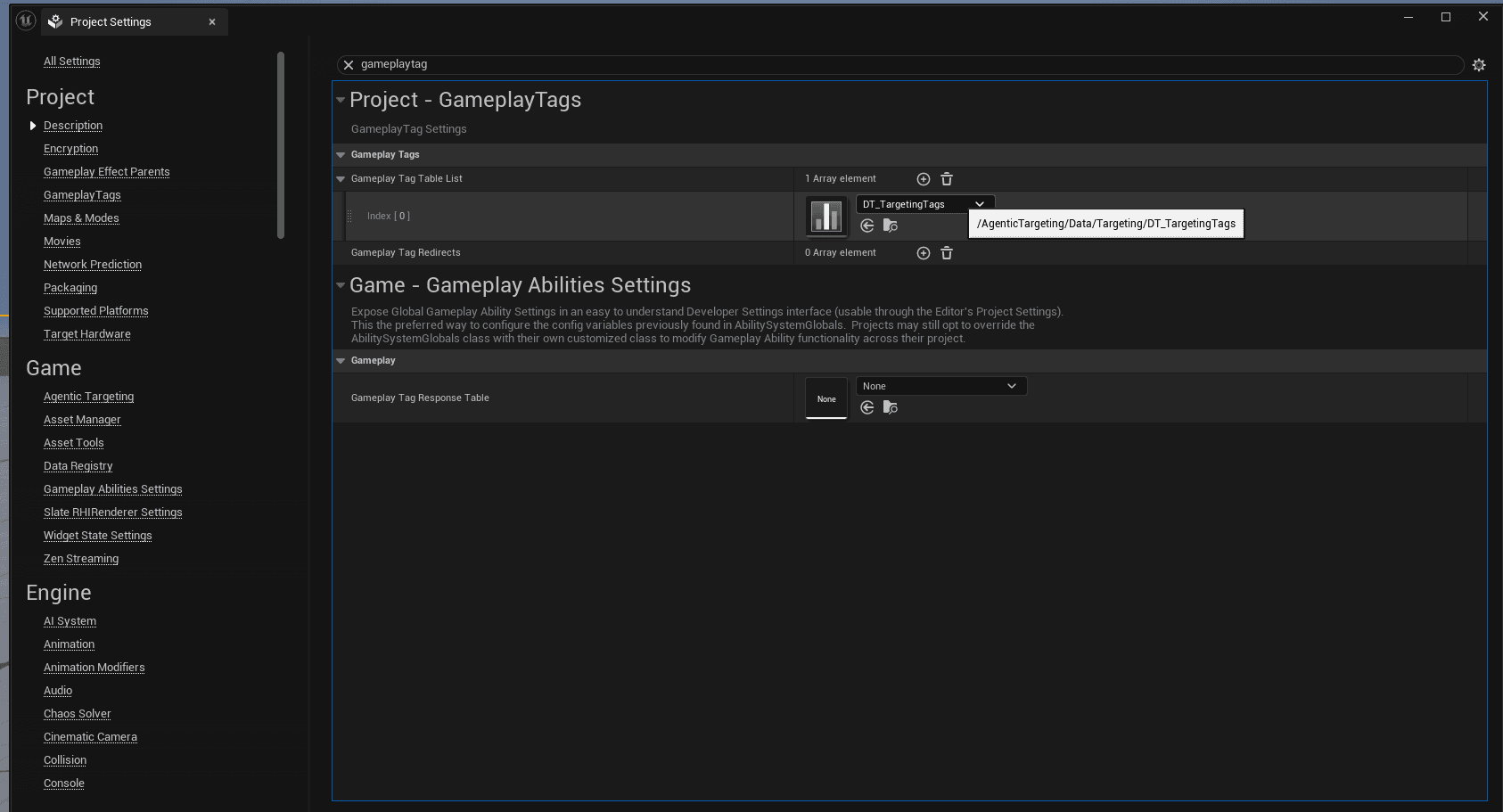
This registers all targeting-related tags (styles, presets, etc.) with your project.
3b. Configure Data Tables
Still in Project Settings, navigate to Game → Agentic Targeting and configure the data tables:
| Setting | Value |
|---|---|
| Default Targeting Preset Data Table | DT_TargetingPresets |
| Default Targeting Style Data Table | DT_TargetingStyles |
| Task Primitives Data Tables | Add DT_TargetingTasks |
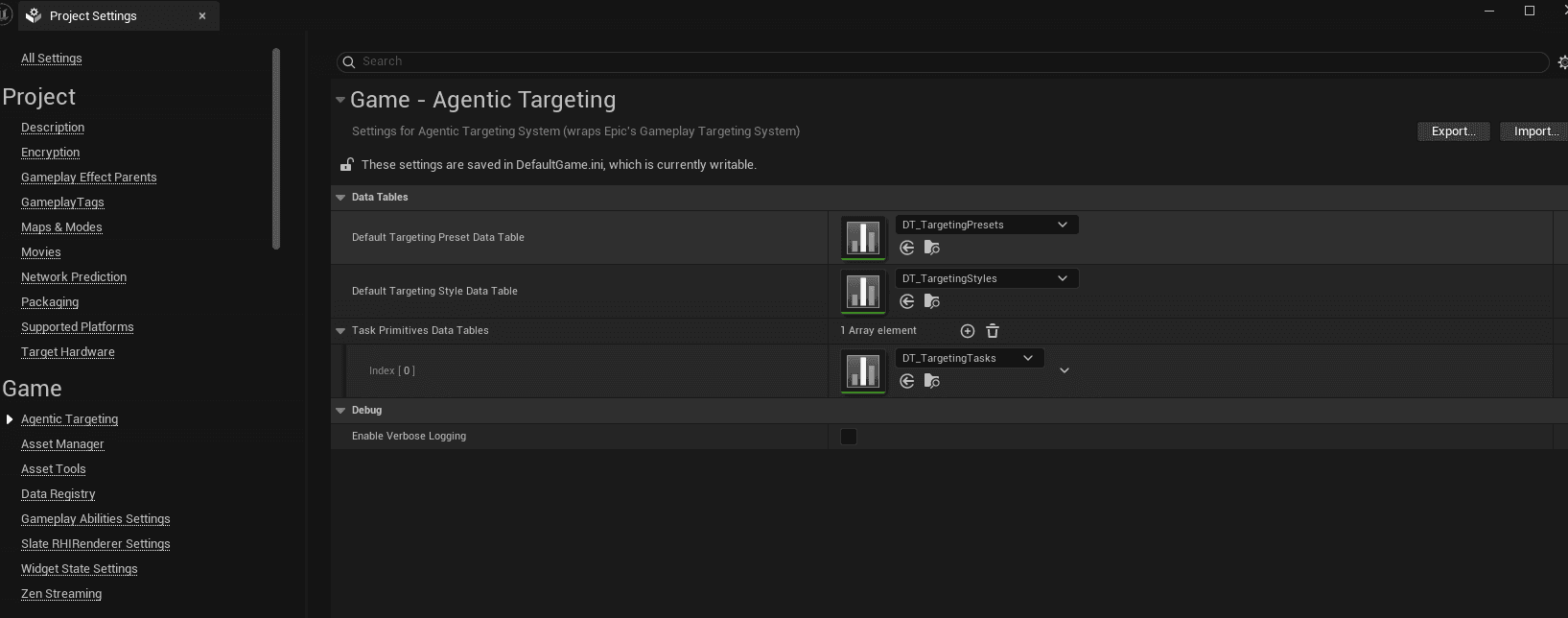
These data tables define the available presets, styles, and targeting tasks that the plugin uses.
3c. Configure Enhanced Input (optional)
Below the data tables, Game → Agentic Targeting → Enhanced Input has two fields:
| Setting | Used for |
|---|---|
| Default Move Input Action | IA_Move (Axis2D) |
| Default Look Input Action | IA_Look (Axis2D) |
These are only read by the Sort.StickDirection task — i.e. directional target
selection in soft-lock styles (Freeflow, TwinStick). They let that task read your
stick/mouse direction without you wiring the input action onto every task instance.
Hard-lock styles (Souls/GoW/Zelda) never use them, so it's expected that setting
or clearing them makes no difference for a Souls-style lock. Leave them empty unless
you use a StickDirection-based preset.
Step 4: Add Module Dependency (C++ Only)
Skip this step if you're using Blueprint-only.
If your game module uses C++ and needs to reference targeting classes directly, add the dependency to your Build.cs:
PublicDependencyModuleNames.AddRange(new string[]
{
    "Core",
    "CoreUObject",
    "Engine",
    "InputCore",
    "AgenticTargeting"  // Add this line
});
Step 5: Add Targeting Component to PlayerController
CRITICAL: Add to PlayerController, NOT Character!
The targeting component MUST be added to your PlayerController, not your Character/Pawn.
Why?
- Persists across character respawns and deaths
- Works correctly with possession (switching pawns)
- Maintains lock-on state during gameplay transitions
Adding it to the Character is a common mistake that will cause targeting to fail.
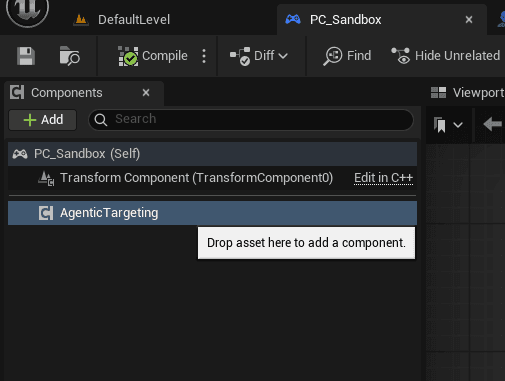
- Open your PlayerController Blueprint (e.g.,
BP_PlayerController) - In the Components panel, click Add
- Search for "Agentic Targeting"
- Add the AgenticTargetingComponent
Configure the Component
Select the component and configure these properties in the Details panel:
| Property | Description | Recommended |
|---|---|---|
| Default Preset Tag | How to search for targets | Agentic.Targeting.Preset.Melee |
| Default Style Tag | Lock-on behavior | Agentic.Targeting.Style.Souls |
| Max Targets | Max targets to track | 10 |
| Debug Draw | Show debug visualization | true (for testing) |
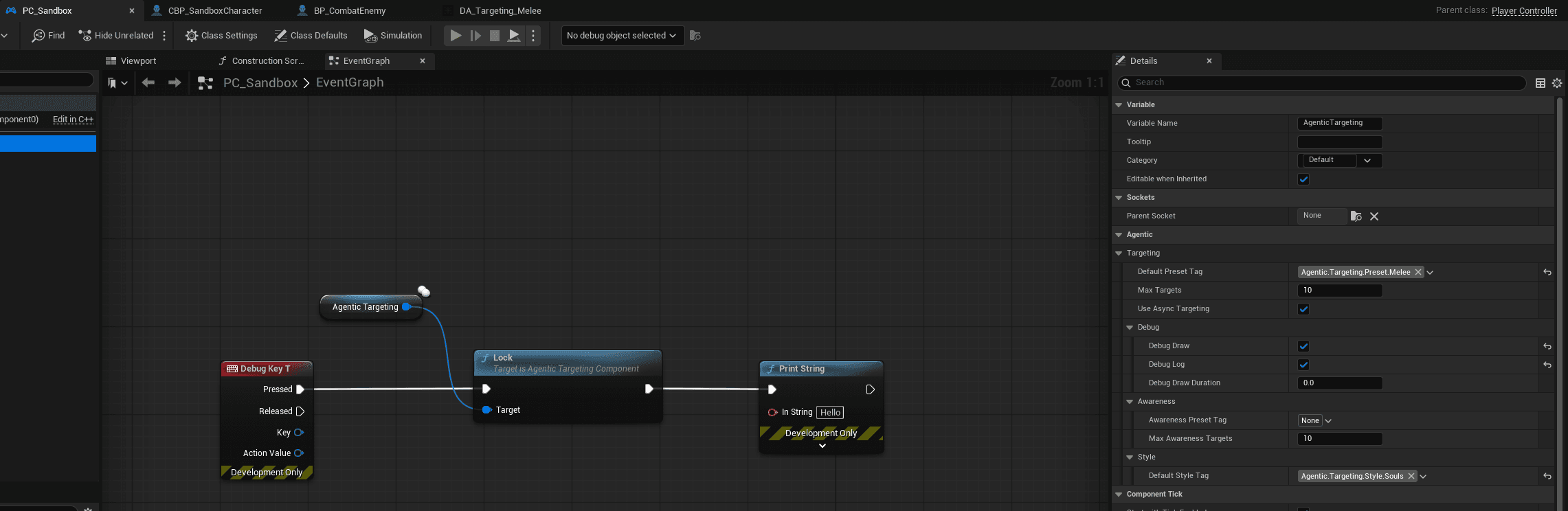
The Default Preset Tag is the most important - it defines search radius, angle, and sorting rules.
Step 6: Implement IAgenticTargetable on Enemies
For an actor to be targetable, it must implement the IAgenticTargetable interface.
6a. Add Interface (Blueprint)
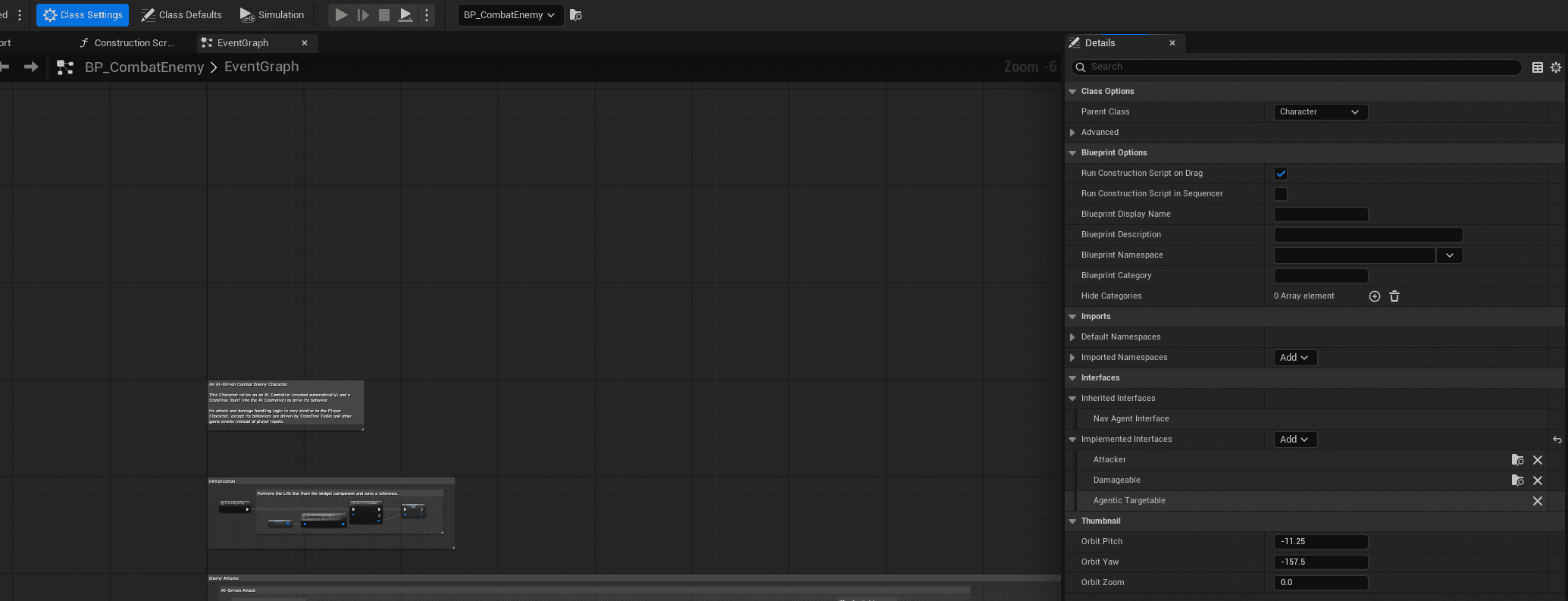
- Open your Enemy Blueprint (e.g.,
BP_CombatEnemy) - Click Class Settings in the toolbar
- In the Details panel, find Interfaces → Implemented Interfaces
- Click Add and search for "Agentic Targetable"
- Add the interface
6b. Implement CanBeTargeted (Required)
You MUST implement CanBeTargeted to return true, otherwise targeting won't work.
- In My Blueprint panel, find Interfaces → Agentic Targetable
- Double-click CanBeTargeted to create the event
- Connect a Return Node with Return Value = true
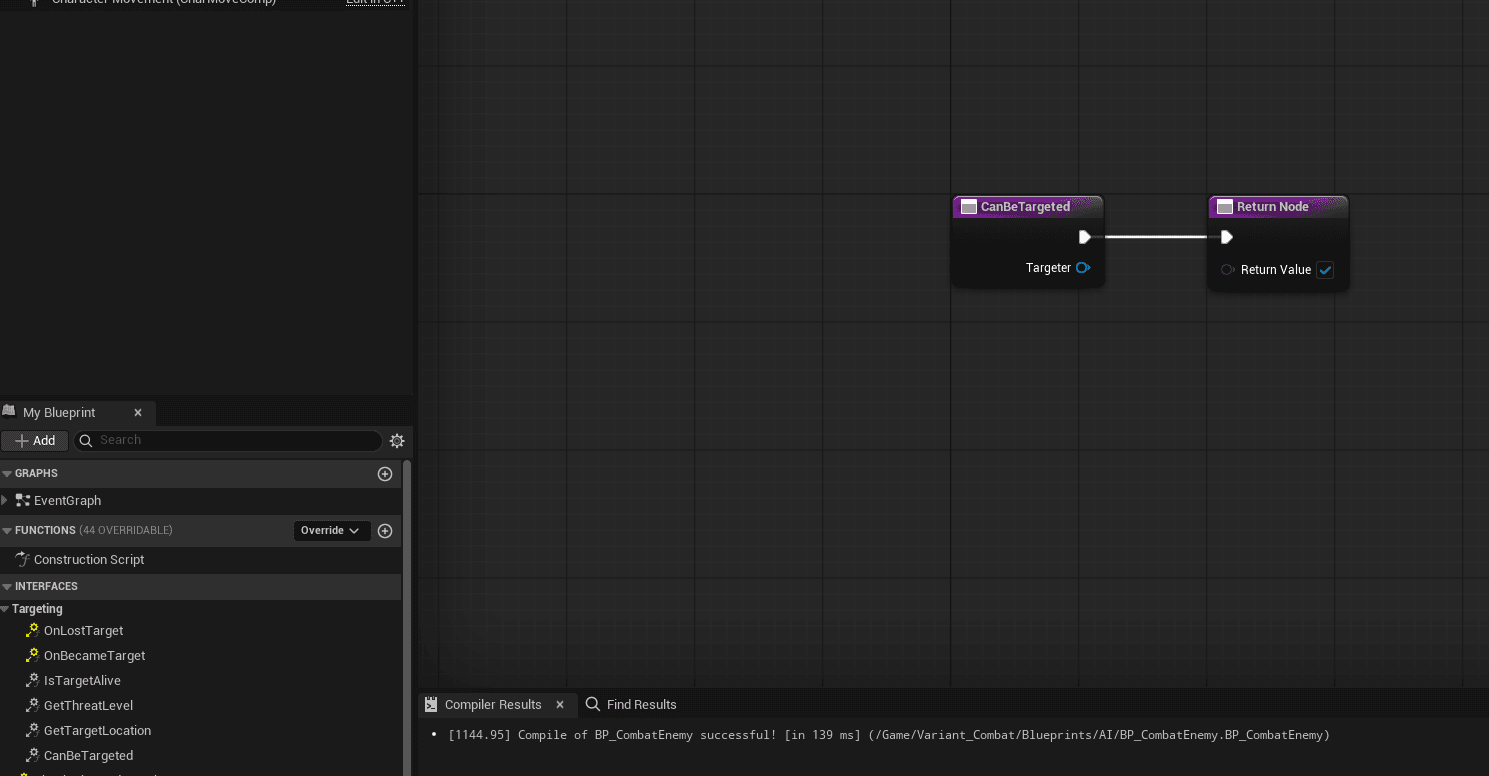
Why is this required? Blueprint interface functions return false by default. Without this implementation, all lock attempts will fail.
6c. Implement IsTargetAlive (Required)
You MUST also implement IsTargetAlive to return true.
- In My Blueprint panel, find Interfaces → Agentic Targetable → IsTargetAlive
- Double-click IsTargetAlive to create the event
- Connect a Return Node with Return Value = true
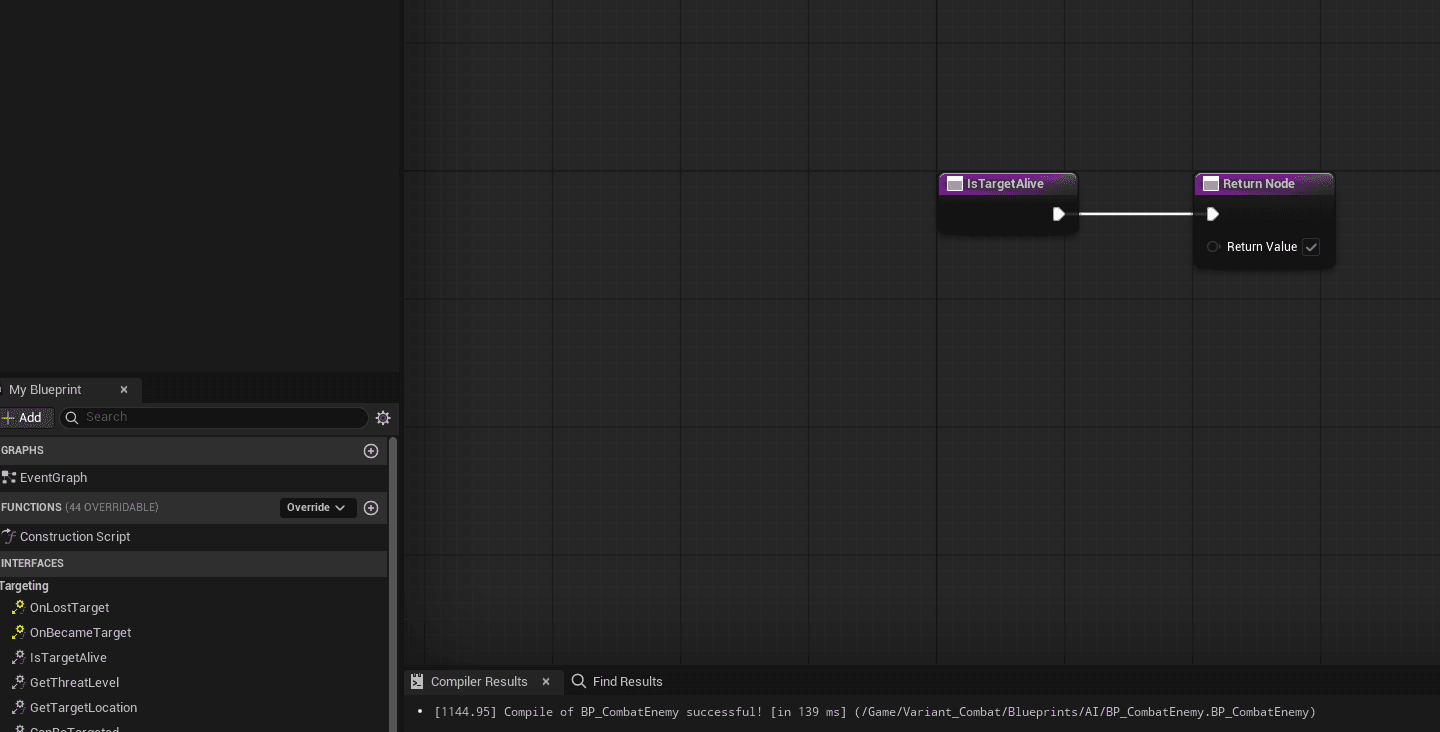
Tip: For actual gameplay, connect this to your health check (e.g., Health > 0).
C++ Setup (Alternative)
#include "IAgenticTargetable.h"

UCLASS()
class AMyEnemy : public ACharacter, public IAgenticTargetable
{
    GENERATED_BODY()

    virtual bool CanBeTargeted_Implementation(AActor* Targeter) const override
    {
        return true;  // Required for targeting to work
    }

    virtual bool IsTargetAlive_Implementation() const override
    {
        return true;  // Or: return Health > 0;
    }
};
Step 7: Add Target Indicator Widget (Optional)
Add a visual indicator widget to enemies that shows when they're targeted.
7a. Create the Widget Blueprint
- Content Browser → Right-click → User Interface → Widget Blueprint
- Name it
WBP_TargetIndicator - Design your indicator (e.g., diamond shape, reticle, health bar)
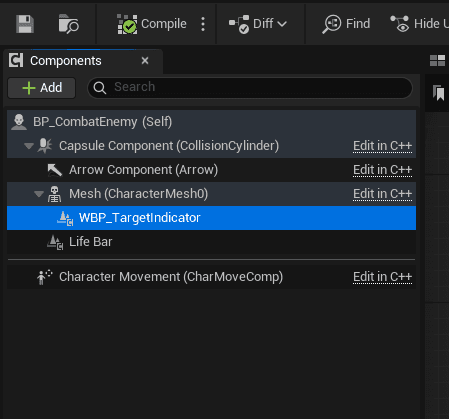
7b. Add Widget Component to Enemies
- Open your Enemy Blueprint (e.g.,
BP_CombatEnemy) - In the Components panel, click Add
- Search for Widget and add a Widget Component
- Rename it to
WBP_TargetIndicator
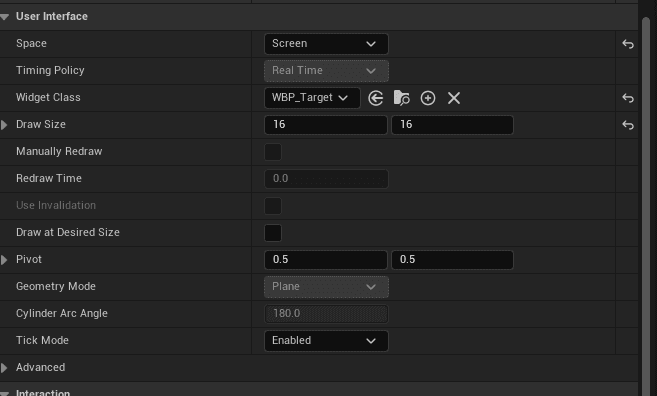
- In the Details panel, configure:
- Widget Class: Select your widget (a basic
WBP_Targetis included in the plugin) - Space:
Screenfor 2D overlay indicators - Draw Size: Adjust as needed (e.g., 16x16 for small reticle)
- Visible:
false(hidden by default, shown when targeted)
- Widget Class: Select your widget (a basic
7c. Toggle Widget Visibility
In your enemy Blueprint, implement the IAgenticTargetable interface events to show/hide the widget:
- Event OnBecameTarget → Set Widget Visibility to
true - Event OnLostTarget → Set Widget Visibility to
false
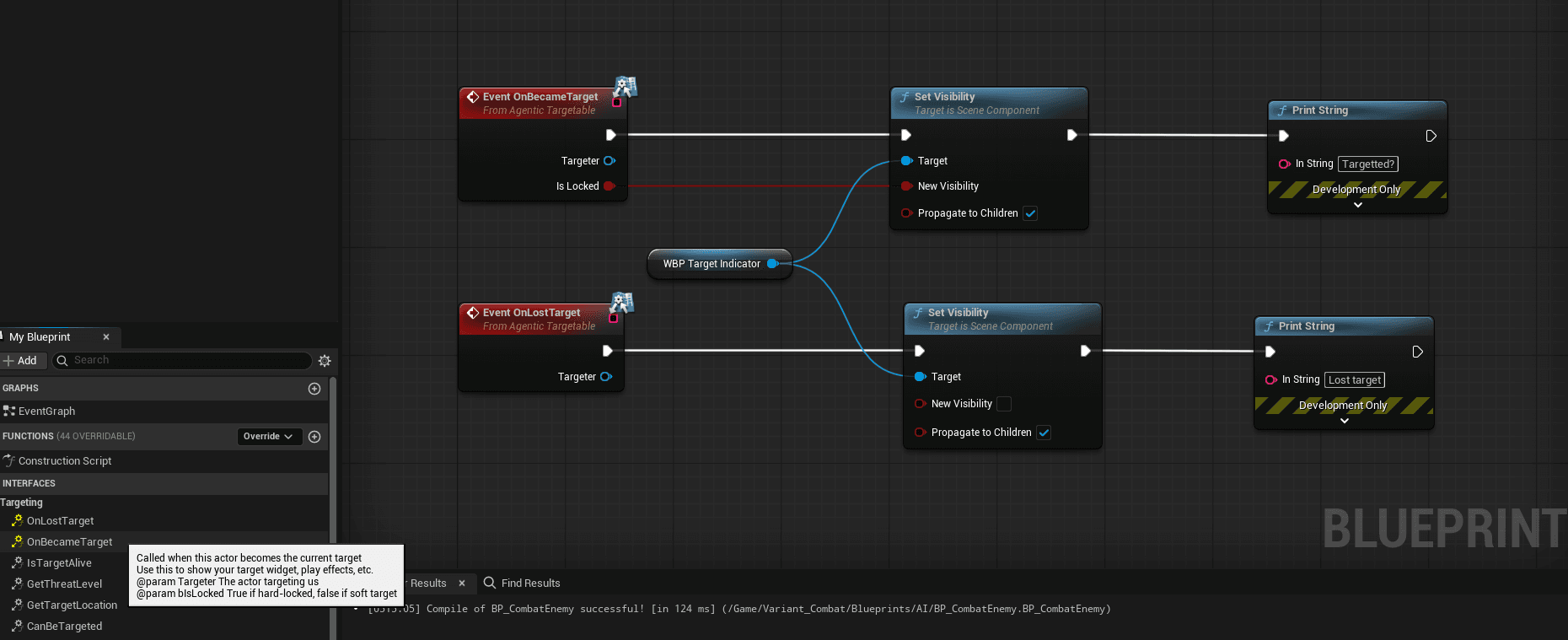
The interface provides these parameters:
- Targeter: The actor targeting this enemy
- bIsLocked:
truefor hard lock,falsefor soft lock
Step 8: Configure Targeting Style
Now configure the targeting style on your character's AgenticTargetingComponent.
- Open your Character Blueprint
- Select the AgenticTargetingComponent
- In the Details panel, set:
- Default Preset Tag:
Agentic.Targeting.Preset.Ranged(or SoulsLike, Melee, etc.) - Default Style Tag:
Agentic.Targeting.Style.Souls(or Freeflow, CombatAwareness, etc.)
- Default Preset Tag:
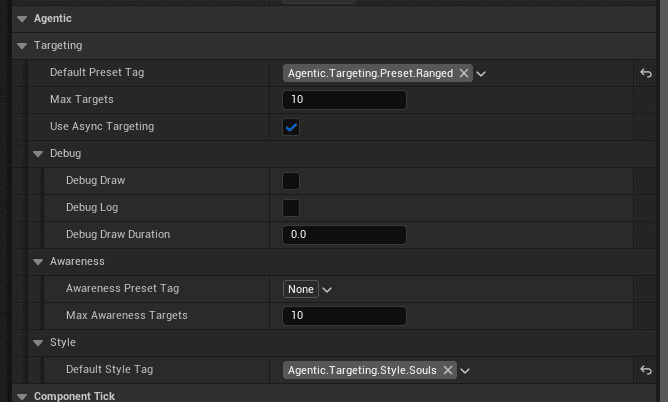
Available Presets
| Preset Tag | Description |
|---|---|
Agentic.Targeting.Preset.SoulsLike | 15m range, 90° cone, closest first |
Agentic.Targeting.Preset.Ranged | 30m range, 45° cone, aim-aligned |
Agentic.Targeting.Preset.Melee | 5m range, 180° cone, closest first |
Agentic.Targeting.Preset.Freeflow | 8m range, 360°, movement-aligned |
Available Styles
| Style Tag | Behavior |
|---|---|
Agentic.Targeting.Style.Souls | Hard lock, toggle on/off, stick to switch |
Agentic.Targeting.Style.Freeflow | Soft lock, auto-switch per attack |
Agentic.Targeting.Style.CombatAwareness | Multi-target awareness, no hard lock |
Step 9: Test Lock-On
Now let's set up input to test the targeting system.
9a. Create Input Action
- In Content Browser, right-click → Input → Input Action
- Name it
IA_LockOn - Set Value Type to
Digital (bool)
9b. Add to Input Mapping Context
- Open your Input Mapping Context (e.g.,
IMC_Default) - Add a mapping for
IA_LockOn - Bind it to a key (e.g., Tab or Middle Mouse Button)
9c. Set Up Blueprint Logic
In your PlayerController Blueprint:
- Add an Enhanced Input Action event for
IA_LockOn - Get reference to your Agentic Targeting Component
- Call Lock() on Triggered:
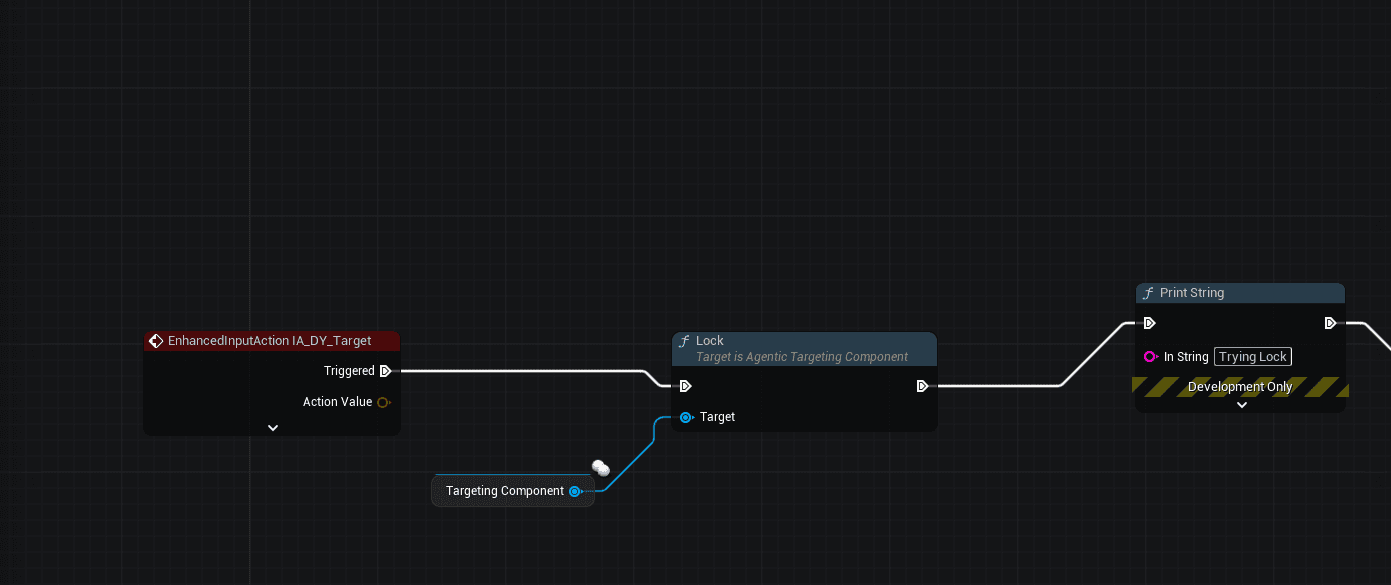
The Lock() function uses your configured Style to determine behavior:
- Hard Lock styles (Souls): Toggle lock on/off, stick to switch targets
- Soft Lock styles (Freeflow): Auto-updates target each attack
- Combat Awareness: Multi-target tracking, no hard lock
9d. Test in Editor
- Play in Editor (PIE)
- Place an enemy actor with
IAgenticTargetableinterface in your level - Look toward the enemy and press your lock-on key
- You should see:
- Debug sphere around found targets (if Debug Draw is enabled)
- Target indicator widget on the locked enemy (if configured)
- Log messages in Output Log:
LogAgenticTargeting: ...
Troubleshooting
| Issue | Solution |
|---|---|
| No targets found | Check enemy has IAgenticTargetable interface |
| Targets found but LOS fails | Check Trace Channel in preset's LOS filter task. Default ECC_Visibility may be blocked by your collision setup. Try ECC_Camera or a custom channel |
| Lock() does nothing | Check Output Log for warnings. Ensure Style is configured and ASC is on character |
| Component not found | Ensure component is on PlayerController, not Character |
| "No ASC found" warning | Add AbilitySystemComponent to your character (GAS is required) |
Step 10: Death Delegate (Optional)
For instant lock-break when a target dies, implement the death delegate:
// In your enemy - broadcast when dying:
OnDeathDelegate.Broadcast(this);
This instantly notifies all players locked onto this enemy to break their lock. See API Reference for full interface details.
Next Steps
- Styles Reference - Understand each style in detail
- API Reference - Full component API
- Presets Guide - Customize targeting ranges and filters
- Extending Tasks - Create custom targeting tasks in Blueprint