Extending Tasks with Blueprint
Create custom targeting tasks by inheriting from Agentic task classes
Extending Tasks with Blueprint
Create custom targeting tasks by inheriting from Agentic task classes and adding your own logic in Blueprint.
When to Extend
Extend tasks when you need:
- Dynamic radius based on weapon range, character stats, or abilities
- Custom filtering logic specific to your game
- Game-specific sorting that considers your own data
Available Base Classes
| Class | Purpose |
|---|---|
AgenticSelectionTask_AOE | Area selection with dynamic radius support |
AgenticSelectionTask_Trace | Line/sweep trace selection |
AgenticFilterTask_Targetable | Filter by IAgenticTargetable interface |
AgenticFilterTask_ValidationDistance | Distance filter for validation phase |
AgenticFilterTask_ViewAngle | View angle filtering |
AgenticSortTask_Distance | Sort by distance |
AgenticSortTask_ScreenCenter | Sort by screen center proximity |
AgenticWeightedSortTask | Weighted multi-criteria sorting |
Example: Dynamic Radius from Weapon
This example creates an AOE selection task that gets its radius from the character's equipped weapon at runtime.
Step 1: Create Blueprint Class
- Content Browser → Right-click → Blueprint Class
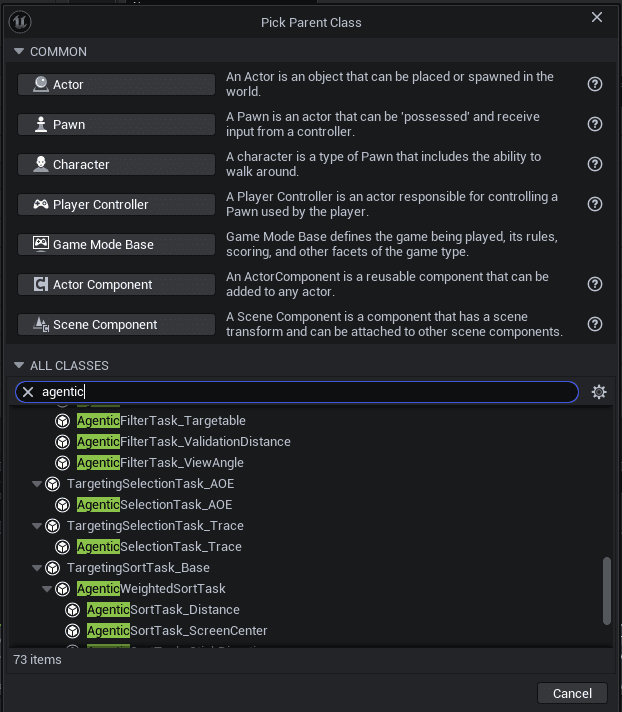
- In "Pick Parent Class", search for
AgenticSelectionTask_AOE - Select it and click Select
- Name it
BP_SelectionTask_AOE_WeaponRange
Step 2: Enable Dynamic Radius (AOE Example)
Steps 2-3 are specific to AgenticSelectionTask_AOE. Other task types have their own overridable functions - check the Overridable Functions list in your Blueprint for available extension points.
- Open your new Blueprint
- In Class Defaults, find the Agentic | Dynamic section
- Enable Use Dynamic Radius (check the box)
Step 3: Override GetDynamicRadius (AOE Example)
- In the Functions panel, find Overridable Functions
- Click Override → Get Dynamic Radius
- Implement the function to return your weapon's range:
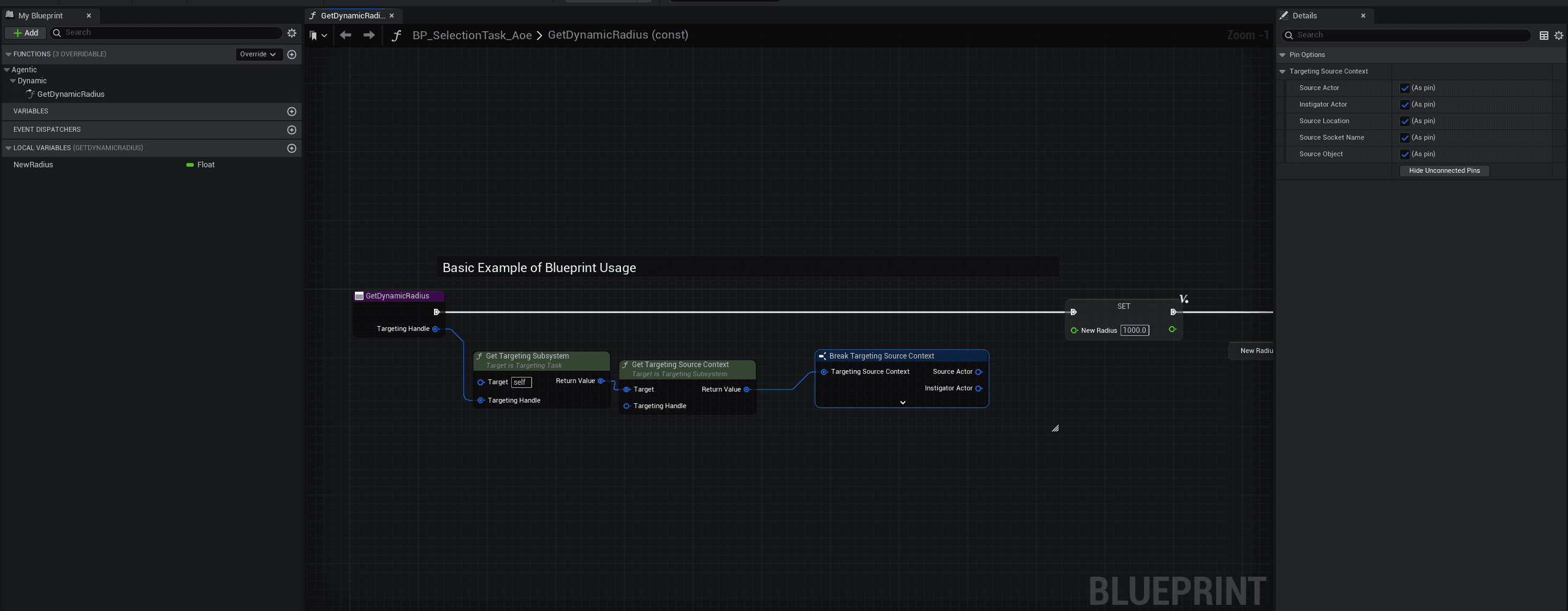
Blueprint Logic:
- Get Targeting Subsystem (from self)
- Get Targeting Source Context (pass Targeting Handle)
- Break the struct to get Source Actor
- Cast to your character/interface and get weapon range
- Return the radius value (in Unreal units, e.g., 1500 = 15m)
Step 4: Register Task Tag (Optional)
Steps 4-5 are optional for basic usage. You can directly select your BP task in presets without registration. However, registration is recommended for AI tools and external editors that work with DataTables.
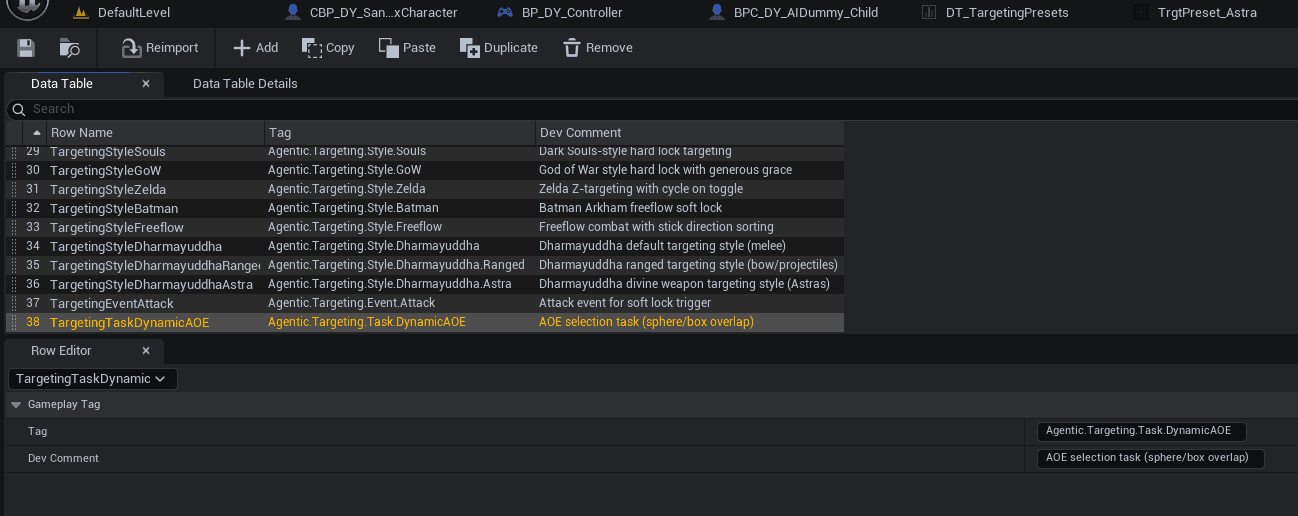
Add a tag for your task in the DT_TargetingTags DataTable:
- Open
/AgenticTargeting/Data/Targeting/DT_TargetingTags - Add a new row with:
- Row Name:
TargetingTaskDynamicAOE(or your preferred name) - Tag:
Agentic.Targeting.Task.DynamicAOE - Dev Comment: Description of what your task does
- Row Name:
- Export CSV (optional but recommended): Right-click DataTable → Export as CSV → overwrite
DT_TargetingTags.csv. This keeps the CSV in sync for AI tools or external editors.
Step 5: Register Task Class (Optional)
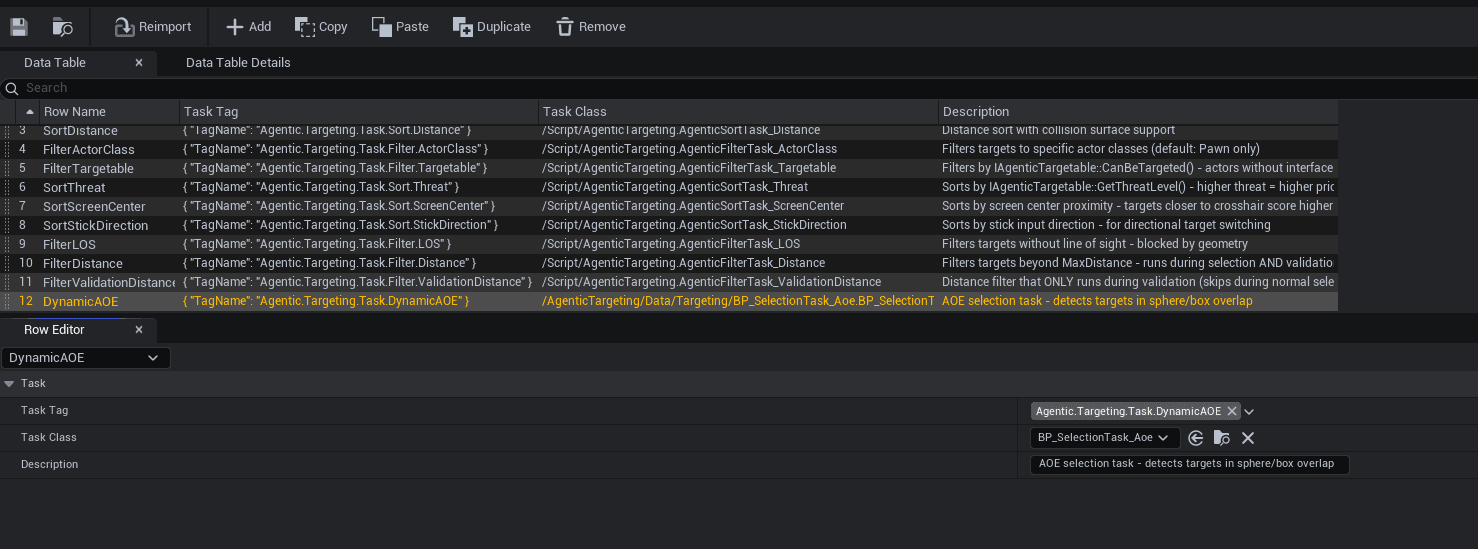
Map your tag to the Blueprint class in DT_TargetingTasks DataTable:
- Open
/AgenticTargeting/Data/Targeting/DT_TargetingTasks - Add a new row with:
- Row Name:
DynamicAOE - Task Tag:
Agentic.Targeting.Task.DynamicAOE - Task Class: Select your
BP_SelectionTask_AOE_WeaponRange - Description: What the task does
- Row Name:
- Export JSON (optional but recommended): Right-click DataTable → Export as JSON → overwrite
DT_TargetingTasks.json. This keeps the JSON in sync for AI tools or external editors.
Step 6: Use Your Custom Task
Reference your Blueprint task in a preset:
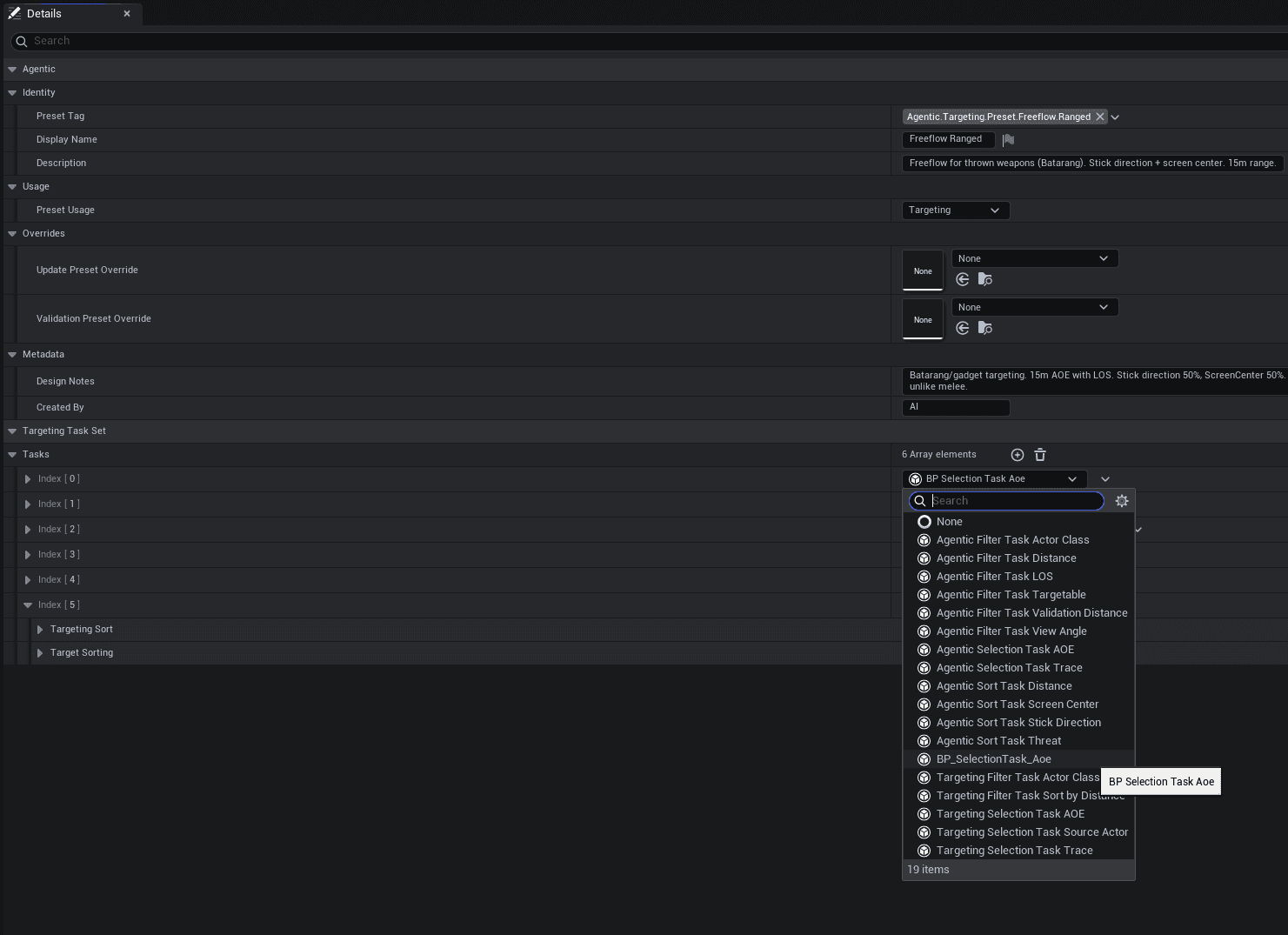
- Create or edit a Targeting Preset Data Asset
- In the Tasks array, select your custom task from the dropdown
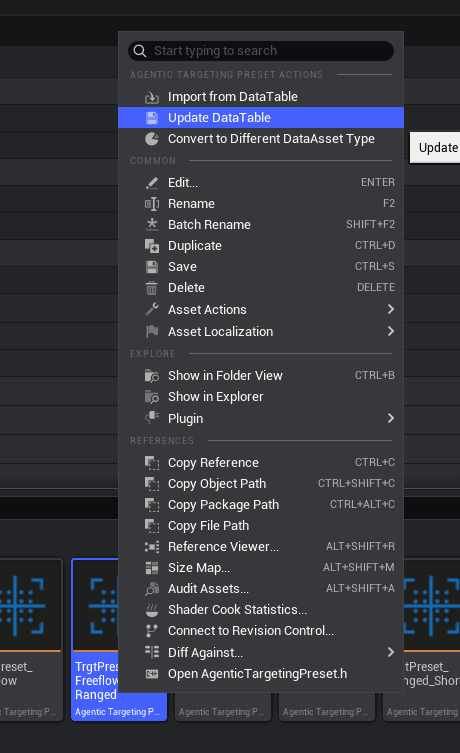
- Update DataTable (optional but recommended): Right-click your preset → Update DataTable. This syncs all changes back to
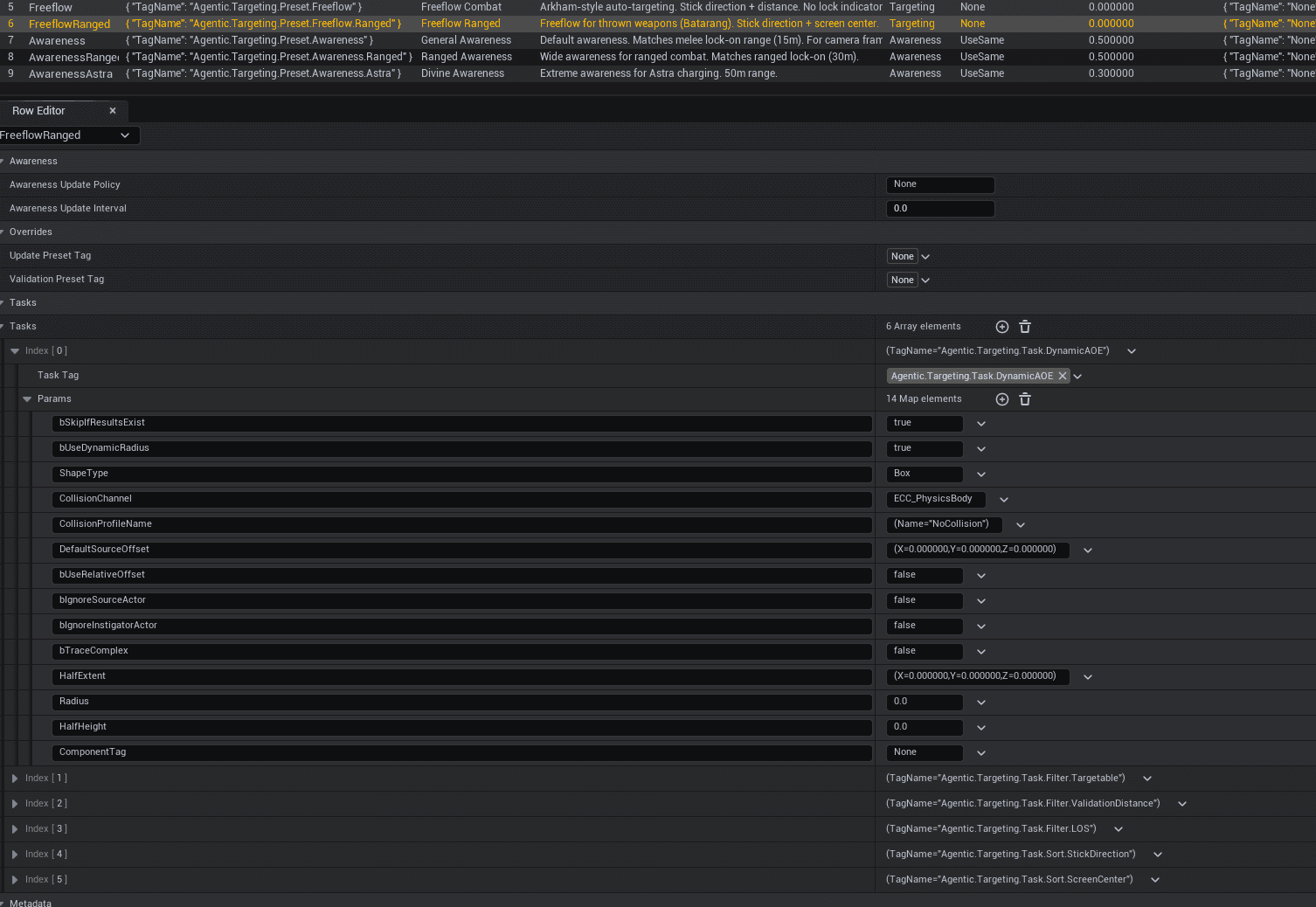
DT_TargetingPresets, including the new task references and all task parameters. Essential for AI workflows and external tools.
The DataTable now contains all task params including bUseDynamicRadius: true:
- The radius will now be determined at runtime from your weapon
Getting Source Actor from Handle
In any overridden function that receives FTargetingRequestHandle, you can get the source actor:
Targeting Handle → Get Targeting Subsystem → Get Targeting Source Context → Break → Source ActorThe FTargetingSourceContext contains:
- Source Actor - The character/pawn doing the targeting
- Source Location - World position
- Instigator Actor - Who triggered the request (often same as Source)
Tips
- Return
<= 0fromGetDynamicRadiusto fall back to the configured Radius property - The
bSkipIfResultsExistflag (default true) skips selection if results already exist - useful for re-sorting - You can also override
GetSourceLocationandGetSourceOffsetin selection tasks
Included Example
The plugin includes a ready-to-use example:
Location: /AgenticTargeting/Data/Targeting/BP_SelectionTask_AOE_DynamicRadius
This Blueprint demonstrates the pattern of getting radius from the source actor's extent.