Agent Toolsets
Inspect and author atmosphere assets through nine editor toolsets and a repeatable reference-matching workflow
Agent Toolsets
Agentic Atmos provides nine editor toolsets for inspecting the scene, authoring assets, controlling time and weather, and capturing evidence. Use them for the same asset-backed workflow you would follow in the Details panel—not as a separate runtime atmosphere system.
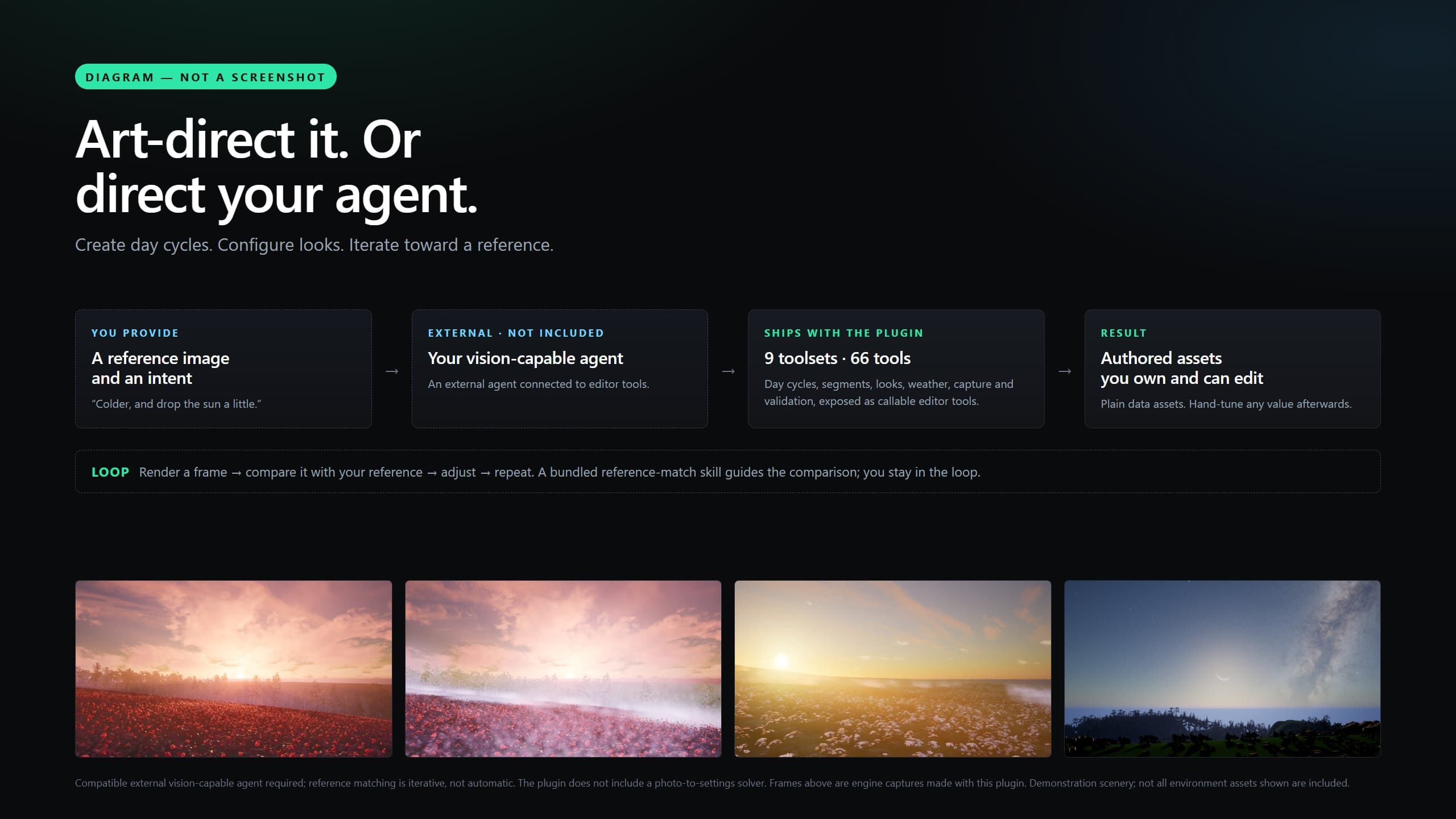
Rendered with Agentic Atmos in the plugin showcase level, with graphic overlays. Demonstration scenery is not all included. This is a rendered example, not an editor screenshot.
The toolsets require Unreal Engine 5.8 and Epic's experimental ToolsetRegistry plugin. They register in the editor module; your packaged game does not depend on agent tooling. This is a text walkthrough of the workflow, not a screenshot tour of the editor.
Discover the editor's toolsets
Enable ToolsetRegistry, restart the editor, and discover the live tool identifiers and argument schemas through Unreal's ToolsetRegistry/MCP surface. Use those schemas rather than inferring parameter names from examples or from another engine version.
| Toolset | Use it for |
|---|---|
AtmosTime | Clock inspection and time controls |
AtmosSky | Sky and celestial inspection |
AtmosCapture | Rendered captures and evidence |
AtmosWeather | Weather inspection and controls |
AtmosAuthor | Creating and editing content assets |
AtmosSegment | Reading and authoring day-cycle slots |
AtmosRegion | Region authoring and spatial queries |
AtmosValidate | Asset checks, diagnostics, and cost estimates |
AtmosLook | One tool: CompareToReference |
If the list is missing, check that the editor module and required plugin are enabled before concluding a capability does not exist. Appearance checks need a rendering-capable editor; NullRHI cannot render a sky.
Inspect before editing
Start by establishing what is driving the current frame:
- Read the actual sky actor and assigned
DayCycle. - Read the clock and the slot that covers the current time.
- Confirm that slot's
LookPresetis the asset you intend to edit. - Inspect active weather and any authoring override.
- Use
AtmosValidate.DiagnoseAuthorityto identify competing sky, fog, lighting, or exposure producers.
A successful write to an unreferenced preset cannot change the frame. A preset shown directly also does not prove it appears correctly through the assembled cycle; its time window and outgoing blend still matter.
Use AtmosSegment.ListSegments to choose a slot and GetSegment for its detailed state. DiffSegments helps verify that the requested edit changed the intended values without changing unrelated fields.
Author assets that survive a reload
| Tool | Authoring role |
|---|---|
AtmosAuthor.CreateDayCycle | Create and save an empty cycle; it deliberately invents no dawn, noon, or dusk slots |
AtmosAuthor.CreateSkyProfile | Create a UAtmosRenderProfile, the renderer-content registry used by a cycle |
AtmosAuthor.SetAssetField | Write a supported reflected field such as RenderProfile, BaseLook, or CycleName on an asset |
AtmosAuthor.SetAssetThumbnail | Assign a reviewable content-browser thumbnail |
AtmosAuthor.ListAssets | Discover atmosphere assets before choosing what to edit |
AtmosSegment.AddSegment | Add a timed slot |
AtmosSegment.SetSegmentTime | Set its HHMM window, outgoing transition minutes, and optional curve |
AtmosSegment.RemoveSegment | Remove the explicitly selected slot |
AtmosSegment.PromoteSegmentLooksToPresets | Migrate inline-authored looks to real presets; inspect a dry run before applying |
AtmosValidate.ValidateAsset | Check schema and semantic issues, including overlaps and coverage gaps |
AtmosValidate.EstimateSegmentCost | Inspect cost buckets; an estimate is not a measured frame-time benchmark |
A slot selects when and which look. Author appearance in the preset's category modifiers. The cycle's RenderProfile supplies the renderer entries referenced by those looks; creating an unrelated profile does not mount it.
SetAssetField does not traverse a preset's instanced modifier sub-objects. Create those modifiers inline in the Details panel, or use editor Python with unreal.new_object and the preset as outer. The owning outer is required for the modifier to save with that preset. Obtain approval before an agent executes arbitrary editor Python.
After changing a preset under a held clock, use the sky actor's Refresh Now if needed. Save changed assets and the level, then reopen in a fresh editor process and read the values again. A good render is not proof that the edit was saved.
Use the bundled reference-matching skill
The plugin bundles AtmosphereReferenceMatchSkill with its editor Python content. It is registered as an Unreal Agent Skill for authoring or refining looks against a game screenshot, photograph, film still, or other accepted reference image. Discover it through the editor's agent-skill surface.
The skill describes an iterative method, not an automatic solver:
- Agree on the target. The requester selects the reference, or explicitly delegates selection. A supplementary image is not automatically a replacement target.
- Read the lighting structure. Identify the light source, cloud shape, horizon haze, shadow temperature, and foreground readability. A matching palette alone does not establish a matching atmosphere.
- Declare the comparison. State which visual qualities you are matching and any agreed exclusions. Missing geometry is a limitation to disclose, not something to silently remove from a whole-frame request.
- Own the authored state. Duplicate the necessary assets and edit the preset category responsible for the difference. Do not hide the adjustment in a transient light-component value or an unrelated post-process volume.
- Hold the comparison conditions. Reuse camera pose, time, exposure authority, and scene configuration. Let adaptation, streaming, shaders, and cloud history settle before capturing.
- Change one visual axis. Compare a controlled pair before moving to another category. If several categories change together, label the result as a combined change rather than crediting one dial.
- Review the actual images. Record visible differences, including what remains wrong. Only the requester can accept the look as a match.
- Save and prove persistence. Reopen in a fresh process, restore the intended scene time, read the assets, and render the real cycle's slot interiors and boundaries.
Continue from the requester's feedback through another controlled edit and fresh capture. A plausible image is not an approval. Stop for an actual missing prerequisite—such as an unaccepted target, missing required content, or refused permission—and identify it precisely.
Keep useful capture evidence
For each image, record its resolution, map, scene time, camera pose, paused state, exposure authority, competing producers, and instrument configuration. Keep a unique output filename and a sidecar record instead of overwriting earlier passes.
Capture requests can return before their pixels are written. Wait for the file to finish writing and open the image before using it as evidence. Do not assume capture freezes the clock; establish the intended time state explicitly.
Avoid whole-frame measurements on letterboxed or captioned reference images unless the measured region excludes those additions. A zero-valued or all-miss probe needs a positive control before it proves absence. One frame-cost observation is a sample, not a benchmark.
For asset moves, preserve recovery options and verify referencers after reopening. Confirm class and referencer state before deleting a leftover object. Do not turn earlier approval for an edit into permission for a broader destructive operation.
What CompareToReference does—and does not do
AtmosLook.CompareToReference works with a comparison rig you configure. It does not include a default reference sky, read an arbitrary photograph into settings, or automatically search a look library for the answer.
There is no automatic reference-analysis and look-solving suite. A rig comparison answers a configured technical comparison; it does not replace the requester's judgment of a reference match. Do not report a rendered-for-review frame as an approved match.
The useful loop is: inspect the selected state, make one asset-backed change, refresh, capture under controlled conditions, review, and save. The toolsets make that loop repeatable; they do not decide the art direction.
Next steps
Follow day-cycle authoring, weather authoring, or exposure and grading. If tool discovery or a capture fails, see troubleshooting or Discord support.