AI JSON Workflow
JSON-based workflow for AI-driven config generation and external tooling
AI JSON Workflow
JSON-based workflow for AI-driven config generation and external tooling.
For manual creation: Use the Data Asset workflow in Presets Guide and Styles Reference.
Why JSON?
- AI Design - Describe targeting in plain English, AI generates config
- Self-Documenting - Every JSON includes DesignNotes explaining settings
- Zero C++ Required - AI generates, you import. No compilation
- Version Control - JSON diffs show exactly what changed
- Bulk Editing - Edit multiple presets/styles in one file
Bidirectional Workflow
Import (AI to Unreal):
Export (Unreal to AI):
Data Assets are always the source of truth at runtime. JSON and DataTables sync with external tools.
Import: JSON to Data Asset
When AI generates new targeting configs:
1. AI Creates/Updates JSON
AI generates or updates DT_TargetingPresets.json or DT_TargetingStyles.json by referencing task definitions in DT_TargetingTasks.json.
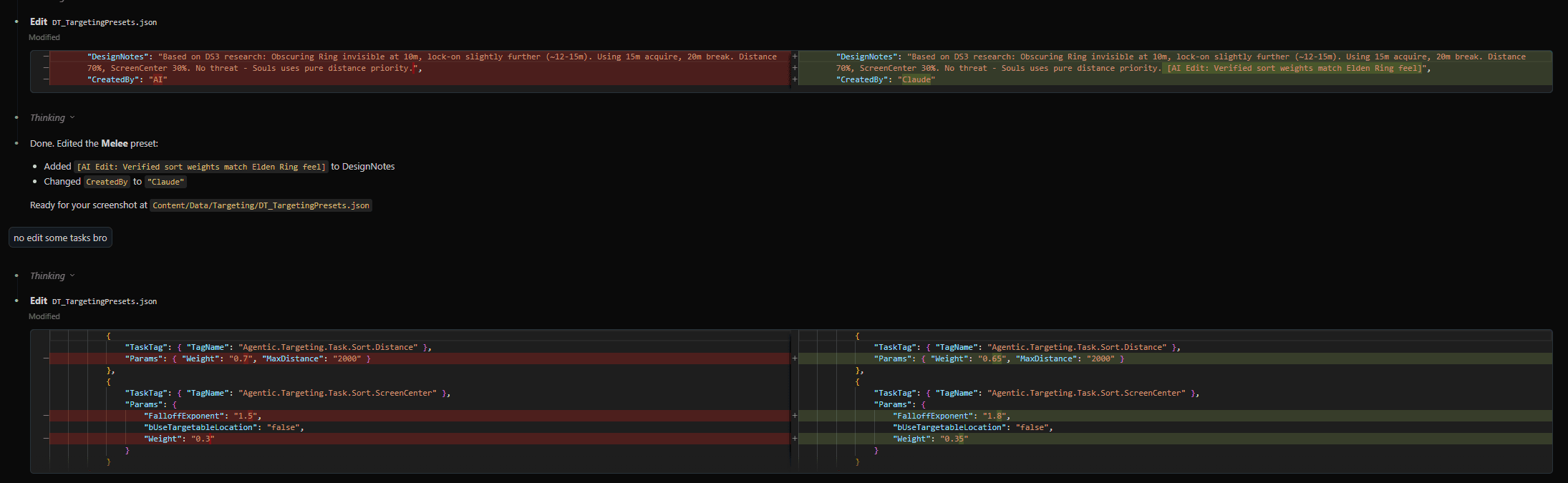
AI tweaks sort weights and falloff in DT_TargetingPresets.json.
2. Reimport DataTables
- Right-click
DT_TargetingTags-> Reimport - Right-click
DT_TargetingPresetsorDT_TargetingStyles-> Reimport
3. Create Data Asset
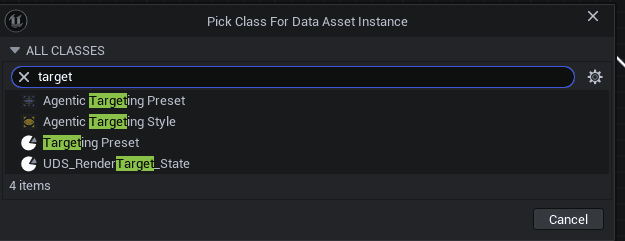
- Content Browser -> Right-click -> Miscellaneous -> Data Asset
- Pick Agentic Targeting Preset or Agentic Targeting Style
4. Set the Tag
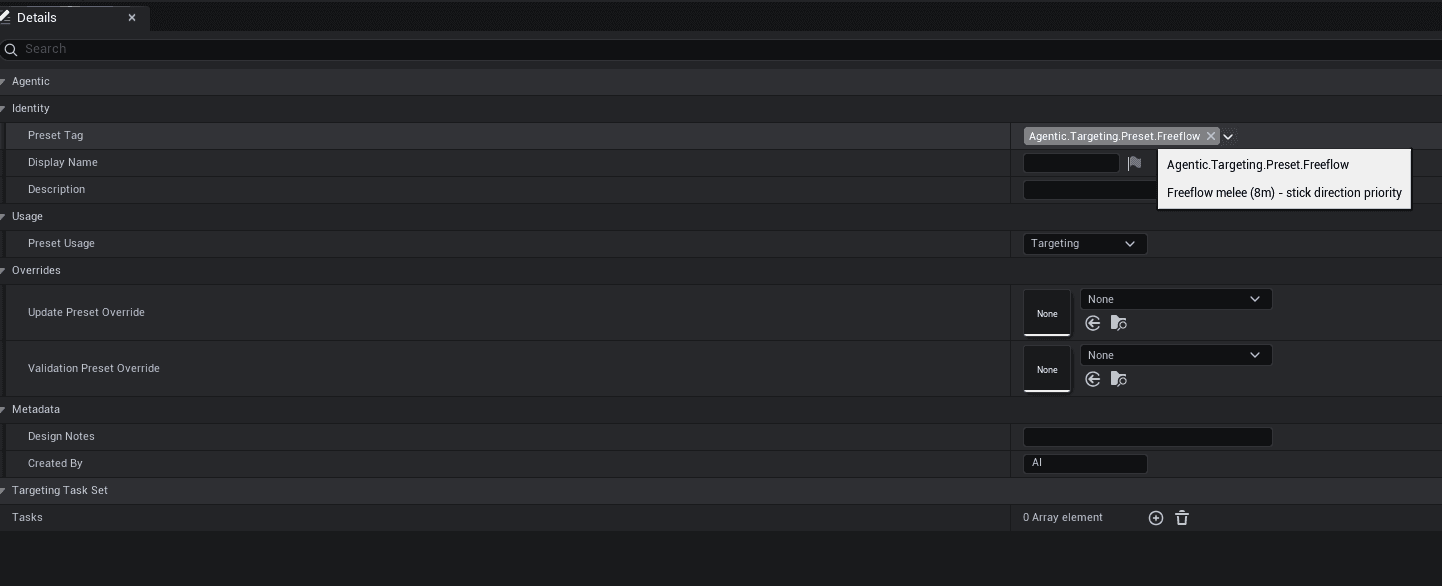
- In the Details panel, set the Preset Tag (or Style Tag)
- This must match a row in the DataTable (e.g.,
Agentic.Targeting.Preset.Freeflow)
5. Import from DataTable
- Right-click on the new Data Asset
- Select Import from DataTable in context menu
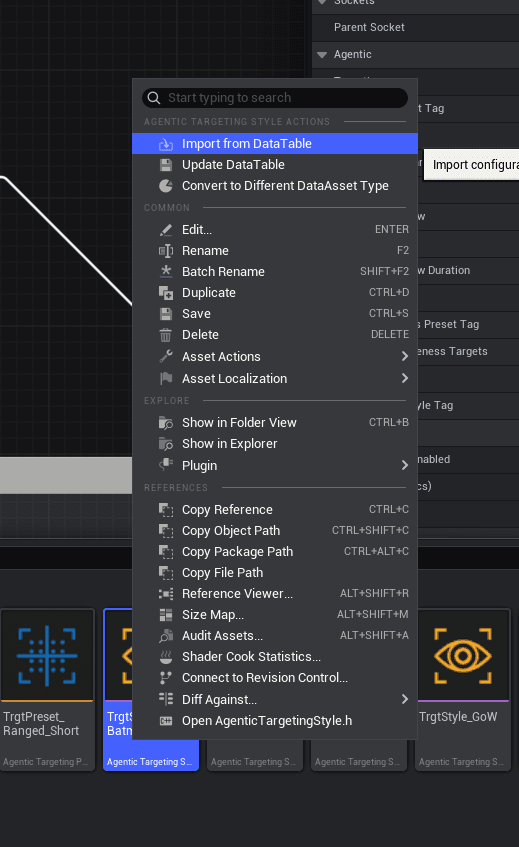
All properties are prepopulated from JSON. The Data Asset is ready for use.
Export: Data Asset to JSON
When designer makes changes in Editor:
1. Update DataTable
- Right-click on the modified Data Asset
- Select Update DataTable
- The corresponding row in DataTable updates
2. Export JSON
- Right-click on DataTable -> Asset Actions -> Export as JSON
- Overwrite the existing JSON file
- Now synced for external/AI workflows
JSON Structure
Preset JSON
{
    "Name": "MyPreset",
    "PresetTag": { "TagName": "Agentic.Targeting.Preset.MyPreset" },
    "DisplayName": "My Preset",
    "Description": "What this preset does",
    "Tasks": [
        {
            "TaskTag": { "TagName": "Agentic.Targeting.Task.AOE" },
            "Params": { "Radius": "1500" }
        },
        {
            "TaskTag": { "TagName": "Agentic.Targeting.Task.Filter.Targetable" },
            "Params": {}
        }
    ],
    "DesignNotes": "AI: Created for close-range melee with fast switching",
    "CreatedBy": "Claude"
}
Style JSON
{
    "Name": "MyStyle",
    "StyleTag": { "TagName": "Agentic.Targeting.Style.MyStyle" },
    "DisplayName": "My Style",
    "Description": "Custom lock behavior",
    "LockCapacity": "Single",
    "SoftLockUpdatePolicy": "None",
    "ValidationPolicy": "PoolOnly",
    "ValidationTickInterval": 1.0,
    "GracePeriod": 0.5,
    "RelockAction": "TryDifferent",
    "RelockFallback": "Release",
    "DefaultLockPresetTag": { "TagName": "Agentic.Targeting.Preset.Melee" },
    "DesignNotes": "AI: Souls-like with faster grace period",
    "CreatedBy": "Claude"
}
AI Design Loop
The complete AI-driven targeting design workflow:
AI Design Examples
Natural Language to Config
Prompt: "Make a Sekiro-style targeting - faster than Souls, auto-switch on death, 10m range"
AI generates:
{
    "Name": "SekiroStyle",
    "StyleTag": { "TagName": "Agentic.Targeting.Style.Sekiro" },
    "DisplayName": "Sekiro Quick Lock",
    "GracePeriod": 0.3,
    "ValidationFailAction": "TrySwitch",
    "DesignNotes": "Sekiro-style: Faster grace (0.3s vs 0.5s Souls), auto-switch on death"
}
Iterate with Feedback
User: "Lock breaks too easily during combat"
AI updates:
{
    "GracePeriod": 0.5,
    "DesignNotes": "Increased grace from 0.3s to 0.5s per user feedback"
}
File Locations
| File | Purpose |
|---|---|
Content/Data/Targeting/DT_TargetingStyles.json | Style definitions |
Content/Data/Targeting/DT_TargetingPresets.json | Preset definitions |
Content/Data/Targeting/DT_TargetingTasks.json | Task definitions |
Content/Data/Targeting/DT_TargetingTags.csv | GameplayTag definitions |
Best Practices
- Always include DesignNotes - Document why, not just what
- Use descriptive Names - "SoulsStyleMelee" not "Style1"
- Keep JSON in sync - Export after Data Asset changes
- Reference existing tasks - Check DT_TargetingTasks.json for valid TaskTags