Migrate Into Your Project
Step-by-step walkthrough for adding Agentic Foley to an existing UE project — every friction point, every alignment decision.
Migrating Agentic Foley into Your Own Project
A walkthrough for adding Agentic Foley to an existing third-party or in-house UE project. Every step, every gotcha, every alignment decision.
Engine: UE 5.7 · Plugin shape: Foley-only shell (AgenticFoley + AgenticFoleyEditor, 3 engine plugin deps: GameplayAbilities, Niagara, MetaSound)
If you're starting from a fresh GASP project instead of an existing project, the Quick Start is the canonical setup. This walkthrough focuses on the specific friction points you'll hit when dropping Agentic Foley on top of a project that already has its own content, characters, surface types, and BP hierarchy.
Step 1 — Copy the Plugin
Drop the entire AgenticGASP/ plugin folder into your project's Plugins/ directory. The plugin is self-contained and ships with two Runtime modules:
YourProject/
├── Plugins/
│   └── AgenticGASP/
│       ├── Source/AgenticFoley/
│       ├── Source/AgenticFoleyEditor/
│       ├── Content/
│       ├── Config/
│       └── AgenticGASP.uplugin
└── YourProject.uproject
Folder name is AgenticGASP even though the shipped modules are foley-only (FriendlyName = "Agentic Foley" in the .uplugin) — the folder name is preserved because thousands of /AgenticGASP/... asset paths are baked into the shipped content.
Build: Right-click YourProject.uproject → Generate Visual Studio project files → compile the editor target in your IDE. The plugin's three engine plugin dependencies are auto-enabled on first editor load.
Step 2 — Verify Foley GameplayTags (Automatic)
Open Project Settings → GameplayTags → Gameplay Tag Table List.
DT_FoleyTags should appear automatically at /AgenticGASP/Data/DT_FoleyTags. The plugin's Config/DefaultGameplayTags.ini registers it on first editor load — no manual step required. If your project already has its own tag tables, the foley tags append cleanly at the end without conflicts.
If the table doesn't appear, check that Plugins/AgenticGASP/Config/DefaultGameplayTags.ini copied over intact, then restart the editor.
Step 2b — Register the GameplayCue Scan Path (REQUIRED for multiplayer)
Foley uses GAS GameplayCues to replicate audio and VFX events (jump / land / slide / impact) from the authority to remote peers in multiplayer. The cue handler (GCN_AgenticFoley, registered for the tag GameplayCue.Agentic.Foley) lives inside the plugin at /AgenticGASP/Audio/Foley/. For the GameplayCueManager to pick it up at startup, your project must add that folder to its Gameplay Cue Notify Paths list.
Without this step, 2+ player multiplayer silently drops every replicated foley event on remote clients. Standalone and single-player PIE still work because they don't exercise the replication fan-out path, which is exactly why this bug is easy to miss during solo development and then surface on the first DS / listen-server multiplayer test.
Option A — Project Settings UI (recommended)
- Open Project Settings → search for
gameplaycuein the top search bar (fastest way to find the right category) - Under Game → Gameplay Abilities Settings → Gameplay Cue, find the Gameplay Cue Notify Paths field
- Click the + icon to add a new array element
- Set Index [0] to
/AgenticGASP/Audio/Foley - Save project settings and fully restart the editor —
GameplayCueManageronly scans these paths once at startup, editing after launch has no effect
![Project Settings → Game → Gameplay Abilities Settings with "gameplaycue" in the search bar. The Gameplay Cue section is expanded showing Global GameplayCue Manager Class set to GameplayCueManager, and Gameplay Cue Notify Paths with 1 array element, Index [0] = /AgenticGASP/Audio/Foley.](/_next/image?url=%2F_next%2Fstatic%2Fmedia%2Fmigrate-step2b-gameplaycue-notify-paths.779364a5.png&w=3840&q=75)
Option B — Direct Config/DefaultGame.ini edit
If you prefer editing the ini directly (or you're scripting the setup), append this block to your project's Config/DefaultGame.ini:
[/Script/GameplayAbilities.AbilitySystemGlobals]
+GameplayCueNotifyPaths=/AgenticGASP/Audio/Foley
Save the ini and restart the editor. Same effect as Option A.
Why project config, not plugin config
The plugin also ships a Config/DefaultGame.ini with this entry for documentation / future-compat, but Unreal's UAbilitySystemGlobals::InitGlobalData() runs very early in engine init — before plugin-side game configs have been merged into the effective config cascade. As a result, plugin-side GameplayCueNotifyPaths entries are usually missed at cue manager init time, and the cue handler never gets registered. Putting the entry in the project config is the reliable fix. This is a UE engine-level timing quirk; the buyer-side config step is unavoidable.
Verify it worked
After restart, open Output Log, filter by LogGameplayCueNotify. You should see a line like Added path /AgenticGASP/Audio/Foley during startup. Then in 2-player PIE: jump on one client, the other client hears the land sound. If the remote client is silent, double-check the array element spelled exactly /AgenticGASP/Audio/Foley (no trailing slash, no typo).
Step 3 — Align Physical Surface Types
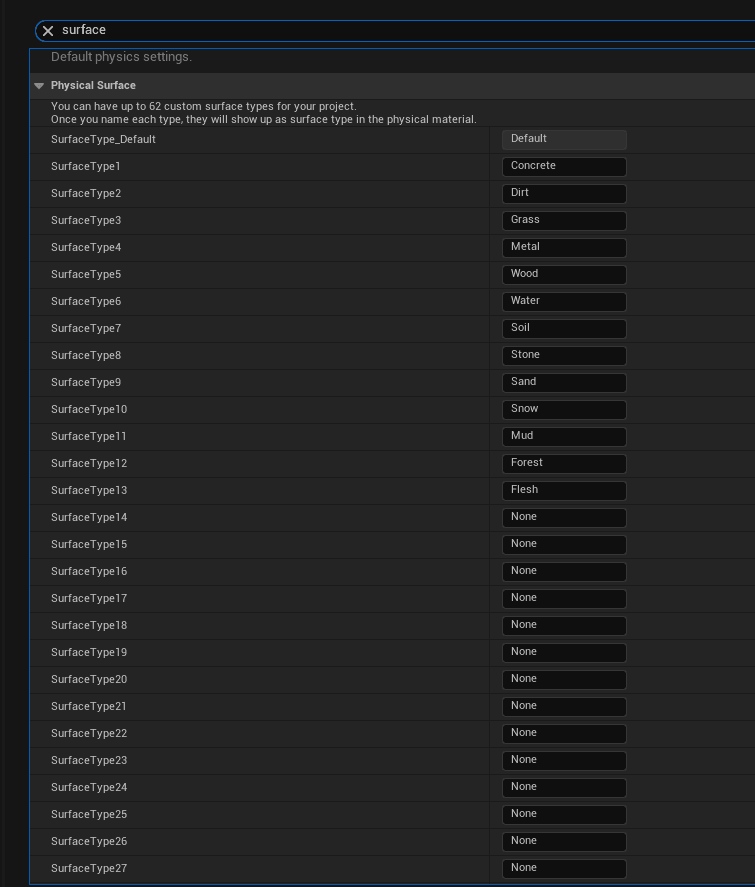
UAgenticFoleyDataAsset keys each row by EPhysicalSurface enum index. The shipped DA_FoleyConfig_* variants were authored against the plugin's canonical ordering:
| Index | Name |
|---|---|
| 0 | Default (catch-all — every DA has this row) |
| 1 | Concrete |
| 2 | Dirt |
| 3 | Grass |
| 4 | Metal |
| 5 | Wood |
| 6 | Water |
| 7 | Soil |
| 8 | Stone |
| 9 | Sand |
| 10 | Snow |
| 11 | Mud |
| 12 | Forest |
| 13 | Flesh |
If your project defines EPhysicalSurface entries in a different order, the DA Details panel will show mismatched labels — a row authored as "Concrete" (index 1) will render as whatever your project has at index 1, even though the row's VFX and AudioBank still point at concrete assets. The runtime still plays the correct sound for the physical material assigned to the ground mesh — it's purely a cosmetic mismatch in the authoring UI.
Two clean options
Option A (recommended): align your project to the plugin's ordering. Open Project Settings → Physics → Physical Surfaces and edit the list entries in place so indices 1–13 match the canonical table above. If your project doesn't hardcode specific surface indices anywhere (most don't — surface references usually go through UPhysicalMaterial assets), this is a zero-risk one-time alignment. Save the project settings, reopen any shipped DA_FoleyConfig_*, and the row labels now render correctly.
Option B: re-key the DA rows to your project's existing indices. Don't touch Project Settings. Duplicate DA_FoleyConfig_Simple → DA_FoleyConfig_YourProject, and for each row change the Surface Type dropdown to point at your project's matching surface. This is the right call if your project's native code ever depends on specific surface indices (check by searching your codebase for hardcoded SurfaceType1, SURFACE_TYPE_2, etc. references).
Either approach is safe — the runtime reads FHitResult::PhysMaterial->SurfaceType from each foot trace and looks up whatever DA row matches that enum value.
After applying Option A, your Project Settings → Physics → Physical Surfaces panel should look like this:
If your project was previously using a different ordering, any ground meshes referencing the old enum values through Physical Material assets will need their PM references updated or swapped to the plugin's shipped PM_* assets under /AgenticGASP/Content/PhysicalMaterials/. The enum values inside the PM assets are preserved on the asset itself; they don't automatically rebind when the project settings change.
Why the plugin uses enum keying. Name-based keying (FName against UPhysicsSettings::PhysicalSurfaces) was considered and rejected. It would have eliminated the one-time alignment at the cost of adding a translation step on every runtime lookup, muddying the authoring UX, and pretending the enum order isn't already a content-contract shape. The enum IS part of the plugin's content contract; buyers align once at setup time, the same way they do for any content-shaped plugin.
Step 4 — Migrate the Sample Foley Assets into Your Project
The plugin ships the runtime C++ component (UAgenticFoleyComponent) plus all the MetaSound presets, SlotBanks, and Physical Materials under /AgenticGASP/Content/. That side is automatic once the plugin is in Plugins/. But the Blueprint-side wiring — the AC_FoleyEvents actor component BP, its audio bank interface, the shared event-params struct — lives in the sample project's /Game/Audio/Foley/ tree, not in the plugin. If you want to match the free sample's behavior (BP event hooks for jump / land / slide wired straight into the foley dispatch pipeline), you need to migrate those assets into your own project.
Using UE's Asset Migrate
Open the free sample project (GameAnimationSample.uproject). In the Content Browser:
- Navigate to
/Game/Audio/Foley/AC_FoleyEvents. - Right-click → Asset Actions → Migrate…
- UE walks the reference graph and shows an Asset Report dialog listing every asset it wants to copy.
- Uncheck everything under the plugin (
Agentic Foley) root — those come with the plugin itself and don't need migrating. The Engine / Niagara / SFX / VFX roots should also stay unchecked (they're buyer-provided content packs). - Keep the
/Gamebranch checked — specificallyAC_FoleyEvents,I_FoleyAudioBankInterface,S_FoleyEventParams, and anyFoleyConfigs/,MetaSounds/Presets/,SoundWaves/folders that hold your chosen variant's content. - Click OK and pick your project's
Content/folder as the destination.
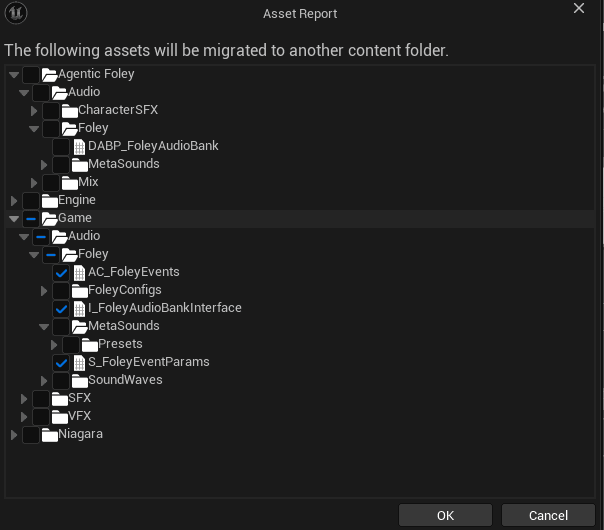
After migrate completes you'll have an identical /Game/Audio/Foley/ tree in your own project, and AC_FoleyEvents will show up as a component you can attach to your character BP in Step 5.
Skipping this step
If you don't want the BP wiring layer and just want the raw C++ component, skip the migrate entirely and use UAgenticFoleyComponent directly in Step 6. You lose the demo's BP event hooks and the buyer-editable FoleyEventBank field, but you keep the whole runtime pipeline. Most production projects with their own movement state machine go this route.
Step 5 — Install Niagara Examples (for VFX)
DA_FoleyConfig_Simple (the default config shipped with the plugin) uses:
- GASP stock sneaker wavs for footstep audio (already present if you migrated
AC_FoleyEventsin Step 4 — it pulls in/Game/Audio/Foley/SoundWaves/automatically) - Niagara Examples (free Epic pack) for surface VFX — dust, splashes, debris
If you want Simple's default VFX to resolve, install Niagara Examples from the Epic Games Launcher:
- Open Epic Games Launcher → Library → Vault → find Niagara Examples → Add to Project → target your project
- The pack lands at
/Game/NiagaraExamples/by default - Optional: move it into
/Game/VFX/NiagaraExamples/to match the sample project's organized layout, then right-click the old location → Fix Up Redirectors
If you skip this step, footsteps still play (audio doesn't depend on Niagara), but surface VFX will show empty.
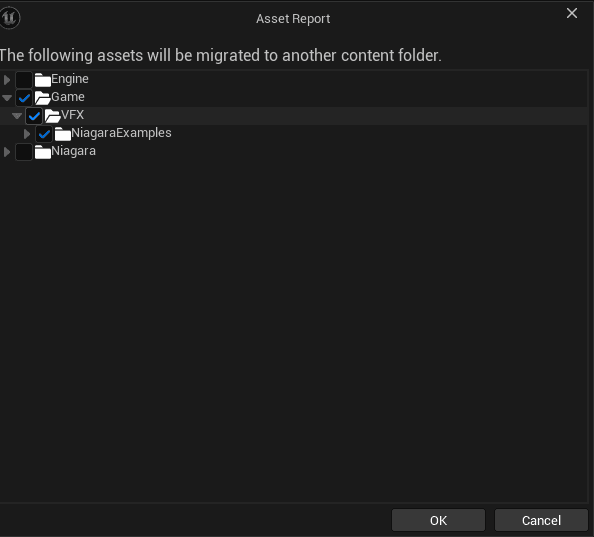
Want richer surface-specific audio? DA_FoleyConfig_Simple plays the same stock wav pool on every surface — functional but minimal. Agentic Foley works with a range of paid SFX and VFX marketplace packs to give you distinct per-surface audio and splashier VFX. Delivery of the pre-wired DataAsset for whatever pack combo you own is handled via the $75 Discord ticket setup — one flat fee, one ready-to-PIE project branch.
What the paid-pack setup looks like
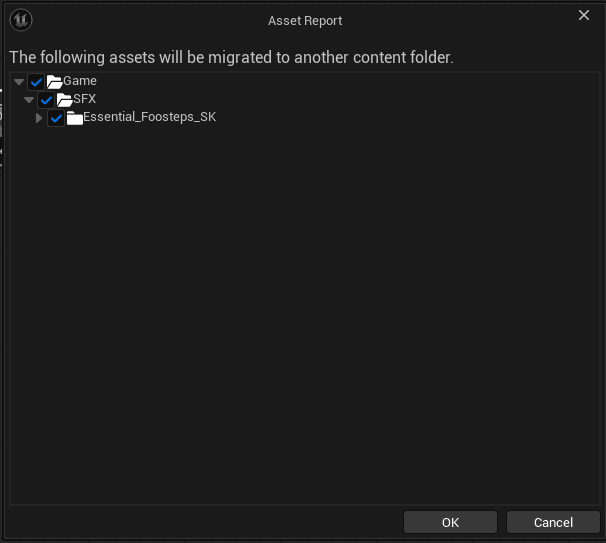
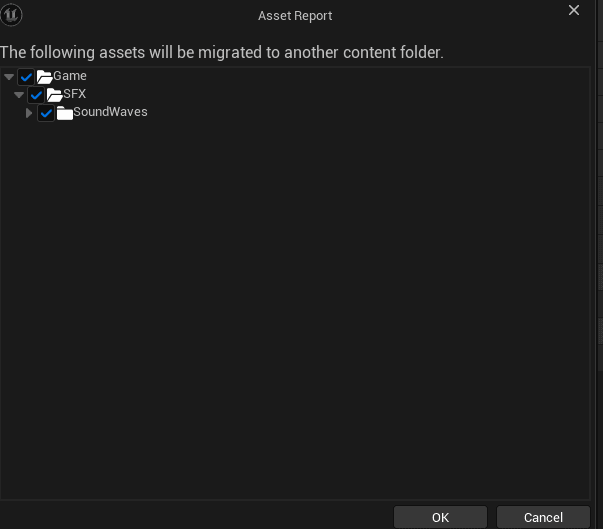
Each pack gets its own Asset Migrate pass from the sample project into yours. Here's what the dialogs look like — you don't run these yourself, the pre-wired branch ships with the content already in place:
Step 6 — Add the Foley Component to Your Character
Open your player character Blueprint in the project (for a GASP-based project, that's typically BP_SandboxCharacter or whatever the project renamed it to). In the Components panel, add a new component of type AC_FoleyEvents (if you migrated it in Step 4) or UAgenticFoleyComponent directly (if you skipped Step 4 and you want the raw C++ component without the BP wiring layer).
Select the new component and in the Details panel:
- Set Foley Data to
DA_FoleyConfig_Simple— the default config shipped with the plugin. It uses GASP stock concrete wavs for footsteps and Niagara Examples for VFX. - Copy the remaining values from the sample project's character BP
AC_FoleyEventscomponent (trace channel, default event tag, AI noise settings, footprint brush override if the sample has one, etc.). The sample project is the canonical reference for "what settings work out of the box" — don't invent values here, just mirror the demo. - Compile + save the character BP.
If the buyer's character BP has child BPs (a common pattern where a base BP defines common behavior and child BPs specialize), add the component on the base BP so every child inherits it. The component auto-caches CachedPawn + CachedMesh in BeginPlay and writes a log line via LogAgenticFoley on success — look for that in the Output Log after the first PIE run to confirm the component attached cleanly.
Step 7 — Replace Existing AnimNotifies with the Foley Pattern
This step is specific to buyers migrating into a GASP-based project. Fresh GASP starts already have animation notifies placed on the stock locomotion sequences by Epic — those notifies typically call a generic footstep event that spawns a default sound. The plugin doesn't add new notifies in this flow; it replaces the existing ones so the dispatch routes through the foley component.
Two approaches:
Option A: Use the native C++ notify (UAnimNotify_AgenticFoley)
Open each of the stock locomotion animation sequences (walk, run, sprint, jog, scuff, strafe, etc.). For every existing footstep notify at a foot-contact frame:
- Delete the existing notify.
- Add a new Agentic Foley notify at the same frame.
- Configure the new notify's Foot Sockets array —
foot_lfor left-foot contacts,foot_rfor right-foot contacts (or whatever your rig calls them). Per-foot identity is preserved through the trace. - Save.
The C++ notify is the simplest path — zero Blueprint glue, finds the foley component on the owning actor automatically, fires TriggerFoleyEventForFeet with the right foot sockets. This is what the free sample project uses for all 88 per-foot notifies placed on the stock GASP locomotion anims.
Option B: Use the BP-based notify from the sample
If you want a Blueprint-side dispatch (extensible from BP — useful when you want per-event hooks, debug visualization, or custom routing without recompiling C++), copy the sample's BP_AnimNotify_Foley* blueprints from the migrated AC_FoleyEvents tree and use them as the notify class instead of the C++ one. The sample's PlayFoleyEvent function inside AC_FoleyEvents looks like this:
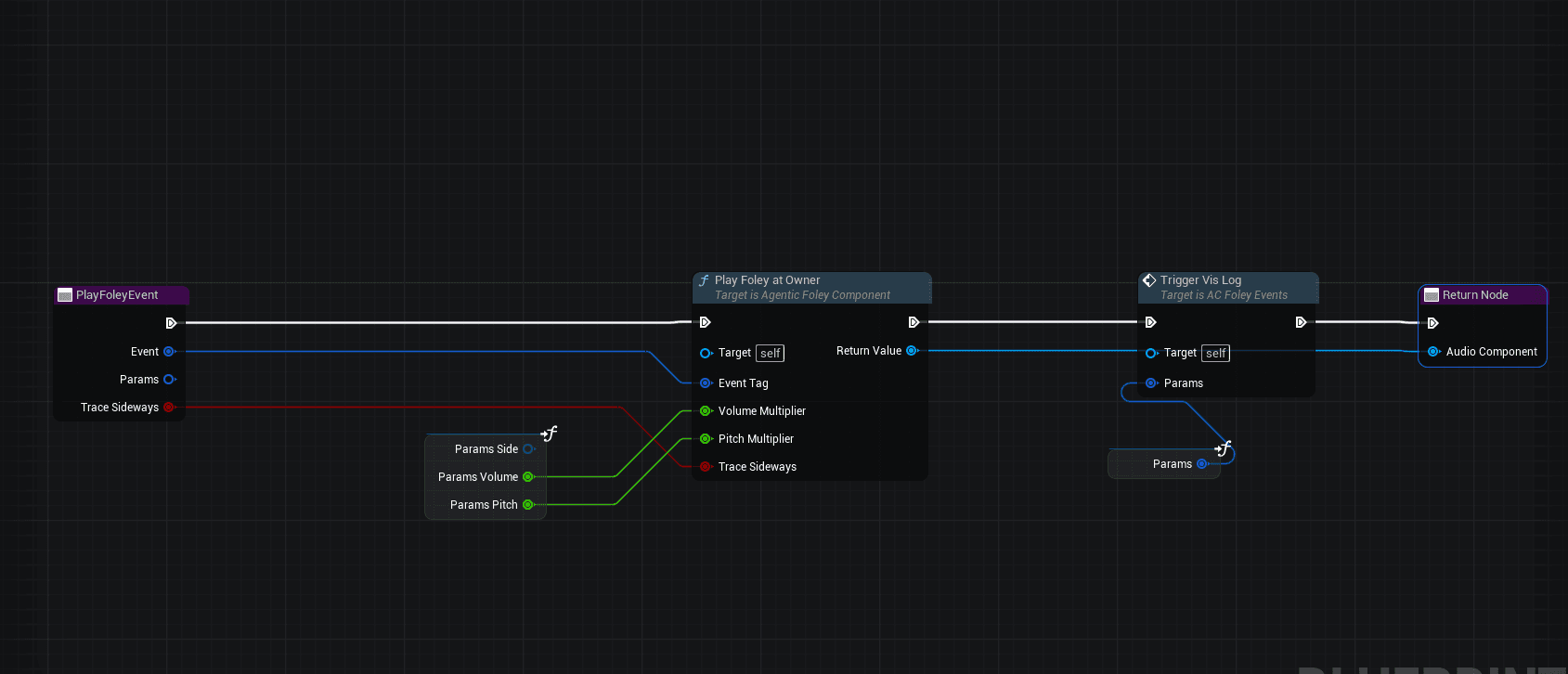
The graph is a single C++ call wrapper (PlayFoleyAtOwner) that collapses the prior 5-node chain (Resolve → IsValid → Spawn Sound Attached → Apply Slot Parameters → Dispatch Foley VFX) into one node. Per-surface VolumeMultiplier from the FoleyConfig DA is composed automatically — set VolumeMultiplier=2.5 on the Concrete row and that surface plays 2.5× louder relative to its sibling rows, no BP wiring required. Option A (the C++ notify) and Option B (this BP path) now share identical volume math, so picking one over the other is purely about whether you want BP-side extensibility.
Either way, the critical rule is: don't ADD notifies on top of the existing ones. GASP stock sequences already have notifies — adding duplicates triples the audio / VFX at each footstep. Replace, don't append.
UE 5.7 GASP gotcha — Is Blending Out drops footsteps on turn / state change. The stock BP_AnimNotify_Foley* graphs shipped with UE 5.7 GASP start with Received Notify → Branch(NOT(Is Blending Out(Event Reference))). When an animation is blending out (turn-in-place, state transitions, stop), the condition goes false and the entire dispatch chain is skipped — you get silent footsteps during turns and transitions. Older GASP versions didn't have this gate, so the sample was authored against the gate-less path. Fix: wire both the Branch's True and False pins to the next node (or delete the Branch + NOT + Is Blending Out nodes entirely — same result, cleaner graph). This also applies to any BP_AnimNotify_Foley* notify you migrated from the sample if your project started from a UE 5.7 GASP template.
Step 8 — Assign Physical Materials to Ground
The foley pipeline resolves what sound to play by reading FHitResult::PhysMaterial->SurfaceType from the foot trace. That means every ground mesh or landscape the character walks on must have a Physical Material assigned that maps to one of the EPhysicalSurface entries you aligned in Step 3. Without a PM assignment, the trace returns PhysMat=None, the DA falls through to the Default row, and every surface plays the default dirt puff regardless of what the ground actually looks like.
The plugin ships 14 ready-to-use Physical Material assets under /AgenticGASP/Content/PhysicalMaterials/ — one per canonical surface:
PM_Concrete, PM_Dirt, PM_Flesh, PM_Forest, PM_Grass, PM_Metal, PM_Mud, PM_Sand, PM_Snow, PM_Soil, PM_Stone, PM_Water, PM_Wood
Each PM_* asset has its Surface Type field baked to the matching enum value from the canonical ordering (after Step 3 that value maps to the right label in your project).
For a landscape
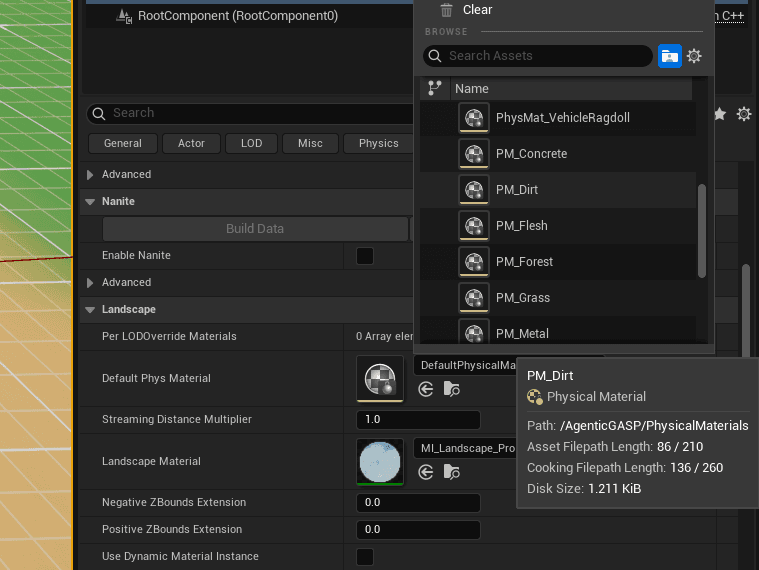
Select the landscape actor in the level. In the Details panel, search for phys to find Default Phys Material under the Landscape category. Pick one of the plugin's PM_* assets — for a walkthrough demo, PM_Dirt gives the most visually dense VFX response (dust puffs, footprint deformation, trail drag on slides):
For per-layer control on a landscape with multiple terrain layers (grass on top of dirt on top of rock, etc.), assign a different PM to each layer via the landscape material instance. The foot trace reads the PM from the specific layer weight at the hit point, so footsteps switch per layer as the character walks across terrain transitions.
For static meshes
Open the static mesh asset → Details → search for phys → Phys Material field. Assign the matching PM_* and save.
For project-wide defaults, you can bake PMs into materials themselves (Material Editor → Material node → Phys Material field). Every mesh using that material inherits the PM automatically — cleaner than setting it per-mesh.
Demo / walkthrough recommendation
With DA_FoleyConfig_Simple, every surface plays the same GASP stock concrete wav pool (Simple is surface-agnostic by design). Any PM_* assignment produces the same audio but triggers the Niagara Examples VFX for that surface. For a marketing clip, PM_Concrete is the cleanest match.
To hear distinct per-surface audio (different wavs per surface), you need one of the richer DA variants — delivered via the $75 Discord ticket setup.
Step 9 — Wire BP Movement Events (Multiplayer)
AnimNotifies handle footsteps — they fire from the animation playback itself and work replicated for free (anim replication runs on every peer). But movement-state events (jump takeoff, landing, slide start / stop, dodge, mantle) don't come from animations; they come from the character's movement component transitioning between modes. Those need manual BP wiring.
The call site is the character BP's OnMovementModeChanged event (for CharacterMovementComponent-based pawns) or the equivalent Mover transition hook. On each mode change, the BP dispatches a foley event tagged Foley.Event.Jump / Foley.Event.Land / Foley.Event.Slide.Loop etc. through TriggerFoleyReplicated, which handles the full hybrid replication fan-out (GAS ExecuteGameplayCue preferred, NetMulticast fallback) so every peer hears / sees the event.
The sample's landing handler looks like this:
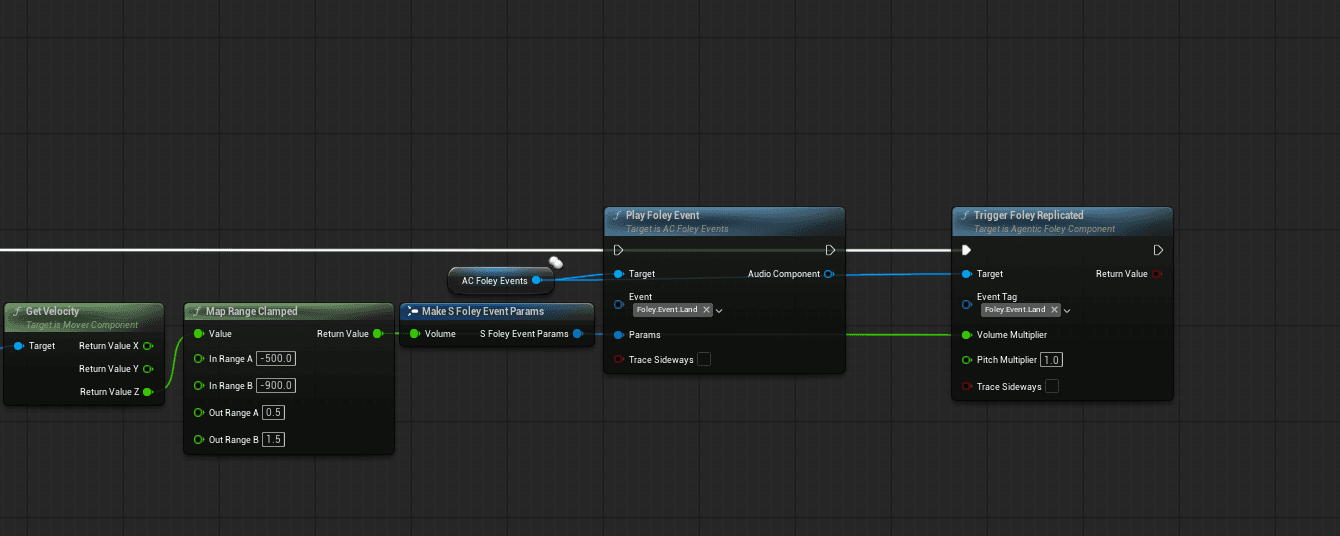
Pattern breakdown:
Get Velocityon the Mover Component reads the current velocity vector. The Z component is the fall speed — larger negative = harder landing.Map Range Clampedconverts Z velocity to a volume multiplier:-500(soft stop) →0.5,-900(hard landing) →1.5. Clamps outside the range.Make S Foley Event Paramspackages the volume multiplier for the legacy BP event chain.Play Foley EventonAC Foley Eventsruns the local BP side (returns an Audio Component for loops).Trigger Foley Replicatedon theAgentic Foley Componentdoes the replicated fan-out so remote clients hear the landing too.
Replicate the same pattern for:
- Jump takeoff —
EMovementMode::Fallingon previous mode check →TriggerFoleyReplicated(Foley.Event.Jump) - Slide start — when your slide state enters →
TriggerFoleyReplicated(Foley.Event.Slide.Loop)(the loop variant starts a persistent audio component that stops on slide end) - Slide end — when your slide state exits →
StopFoleyReplicated(Foley.Event.Slide.Loop)to fade out the loop on every peer - Dodge / mantle / custom gameplay events — any ability or state transition that wants foley →
TriggerFoleyReplicated(YourTag)
For the complete set of dispatch APIs, replication modes, and when-to-use-which, see the Multiplayer guide.
Related
- Quick Start — fresh-project setup for a GASP-based starting point
- Data Assets reference — full reference for
UAgenticFoleyDataAssetshape + canonical surface ordering - Multiplayer guide — replicated dispatch pipeline deep dive
- Troubleshooting — top gotchas + diagnostic recipes