Surface Setup
Configure physical materials, surface types, and per-surface VFX for Agentic Foley
Surface Setup
How the foley system detects surfaces and how to configure per-surface audio and VFX.
How Surface Detection Works
On each foot contact, UAgenticFoleyComponent traces downward from the foot socket. The trace hits geometry, reads the PhysicalMaterial->SurfaceType, and looks up that surface in the active UAgenticFoleyDataAsset.
AnimNotify fires (foot_l plants)
  → TraceFeetResolved(foot_l)
    → Line trace downward from foot_l socket
    → Hit result → PhysicalMaterial → EPhysicalSurface
    → FoleyData->ResolveSurfaceEffect(Surface, EventTag)
    → Returns: AudioBank + VFX + NoiseLevel + StampIntensity
  → DispatchFoleyResolved(result)
If the trace hits geometry with no physical material, it falls back to SurfaceType_Default (usually concrete).
Shipped Physical Materials
The plugin ships 13 pre-configured PM_* assets:
| Asset | Surface Type | Index |
|---|---|---|
PM_Concrete | Concrete | 1 |
PM_Dirt | Dirt | 2 |
PM_Grass | Grass | 3 |
PM_Metal | Metal | 4 |
PM_Wood | Wood | 5 |
PM_Water | Water | 6 |
PM_Soil | Soil | 7 |
PM_Stone | Stone | 8 |
PM_Sand | Sand | 9 |
PM_Snow | Snow | 10 |
PM_Mud | Mud | 11 |
PM_Forest | Forest | 12 |
PM_Flesh | Flesh | 13 |
Assign these to your level meshes via Details > Physics > Phys Material Override.
Per-Surface VFX Overrides
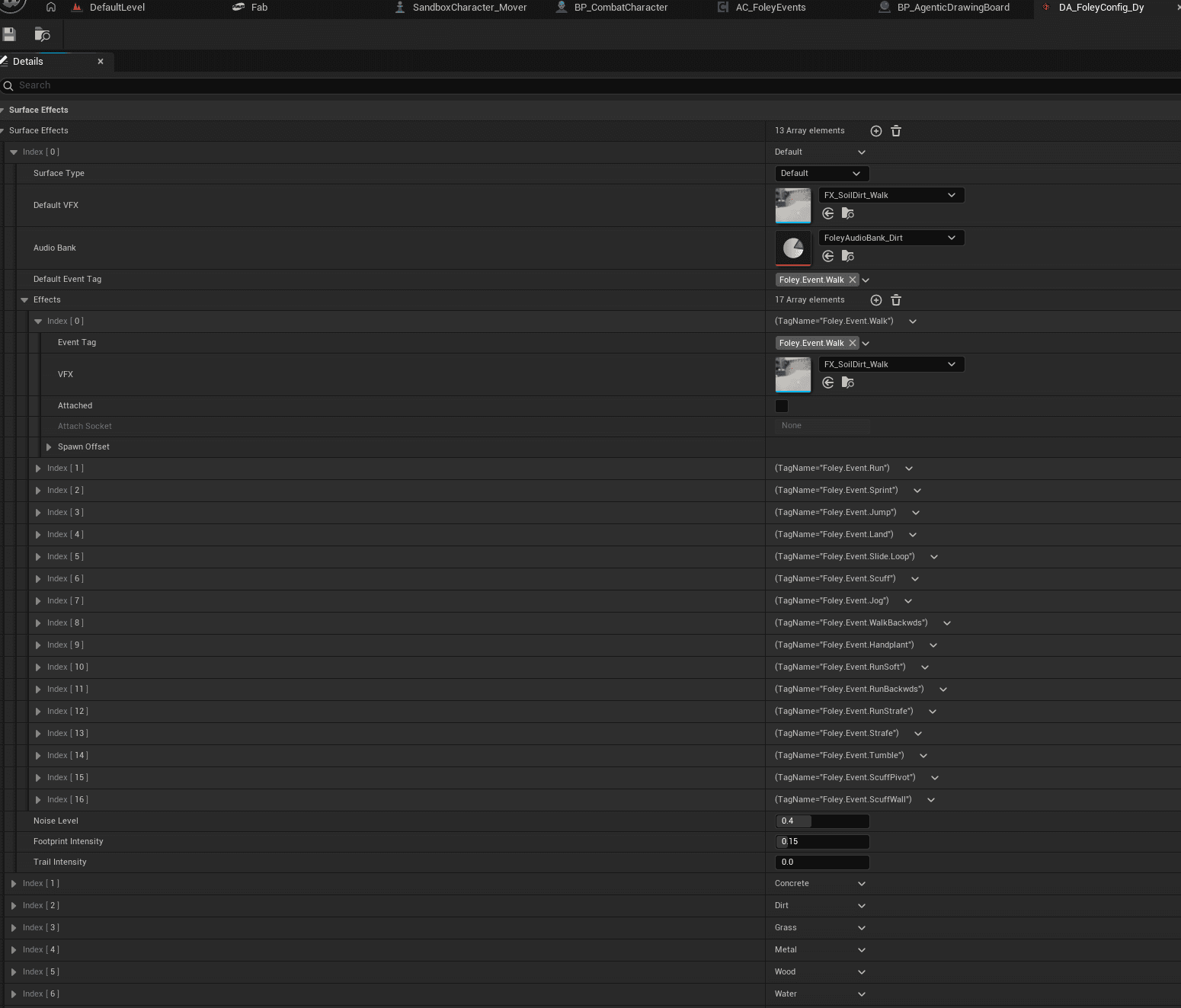
Inside each FAgenticFoleySurface entry in the DataAsset, the Effects array lets you assign different Niagara systems per event tag:
| Event | When | Example VFX |
|---|---|---|
Foley.Event.Walk | Slow gait | Small dust puff |
Foley.Event.Run | Moderate gait | Medium dust cloud |
Foley.Event.Sprint | Fast gait | Large dust plume |
Foley.Event.Jump | Jump pushoff | Ground burst |
Foley.Event.Land | Landing impact | Large impact cloud |
Foley.Event.Slide.Loop | Slide contact | Continuous trail particles |
Events not in the Effects array fall back to DefaultVFX for that surface.
Per-Surface Volume Tuning
When one surface's WAVs are mastered quieter or louder than the others in the same pack, set VolumeMultiplier on the FAgenticFoleySurface entry (clamped to 0.1-5.0, default 1.0). The value is multiplied into the final audio volume alongside the per-call volume and the DataAsset's GlobalVolumeMultiplier:
final_volume = per-call Volume × surface VolumeMultiplier × DA GlobalVolumeMultiplierTypical use: a marketplace pack ships its Concrete WAVs at -12 dB RMS and its Dirt WAVs at -6 dB — set VolumeMultiplier = 3.5 on the Concrete row to bring both surfaces to parity without re-authoring the wavs or the MetaSound presets.
Applies to both PlayMetaSoundFoley (the managed AudioComponent path) and PlayFoleyAtOwner (the BP one-shot path). Equipment SlotBank layers compose their own per-event VolumeMultiplier on top, so armor/gear mixes are unaffected by surface-level tuning.
Adding a Custom Surface
-
Register the surface in
Config/DefaultEngine.ini:+PhysicalSurfaces=(Type=14,Name="Carpet") -
Create a
PM_CarpetPhysical Material asset, setSurface Type = Carpet -
In your
UAgenticFoleyDataAsset, add a new entry toSurfaceEffects:SurfaceType= CarpetDefaultVFX= your carpet Niagara system (or None for no VFX)AudioBank= your carpet AudioBank DataAssetNoiseLevel= 0.1 (carpet is quiet)
-
Assign
PM_Carpetto carpet meshes in your level
The Shipped Config
The plugin ships exactly one config out of the box: DA_FoleyConfig_Simple (concrete-only, routes GASP's built-in sneaker wavs). For more surfaces, author your own UAgenticFoleyDataAsset pointing at any Fab audio pack you own — see Compatible Audio Packs.
A fully-populated config has one SurfaceEffects entry per physical surface, each pointing to an AudioBank and optional per-event VFX overrides:
See Compatible Audio Packs for details on each marketplace integration.